Sero HubSpot Setup Guide
The HubSpot integration enables you to sync Sero Companies and Projects with HubSpot Companies, Deals, Notes and Tickets. This enables users to:
View critical information from HubSpot inside Sero making it a seamless experience to manage projects.
Push critical information from Sero to HubSpot ensuring teams in HubSpot get visibility into projects in Sero.
Install the app
Log in to Sero.
Navigate to Settings → Integrations.
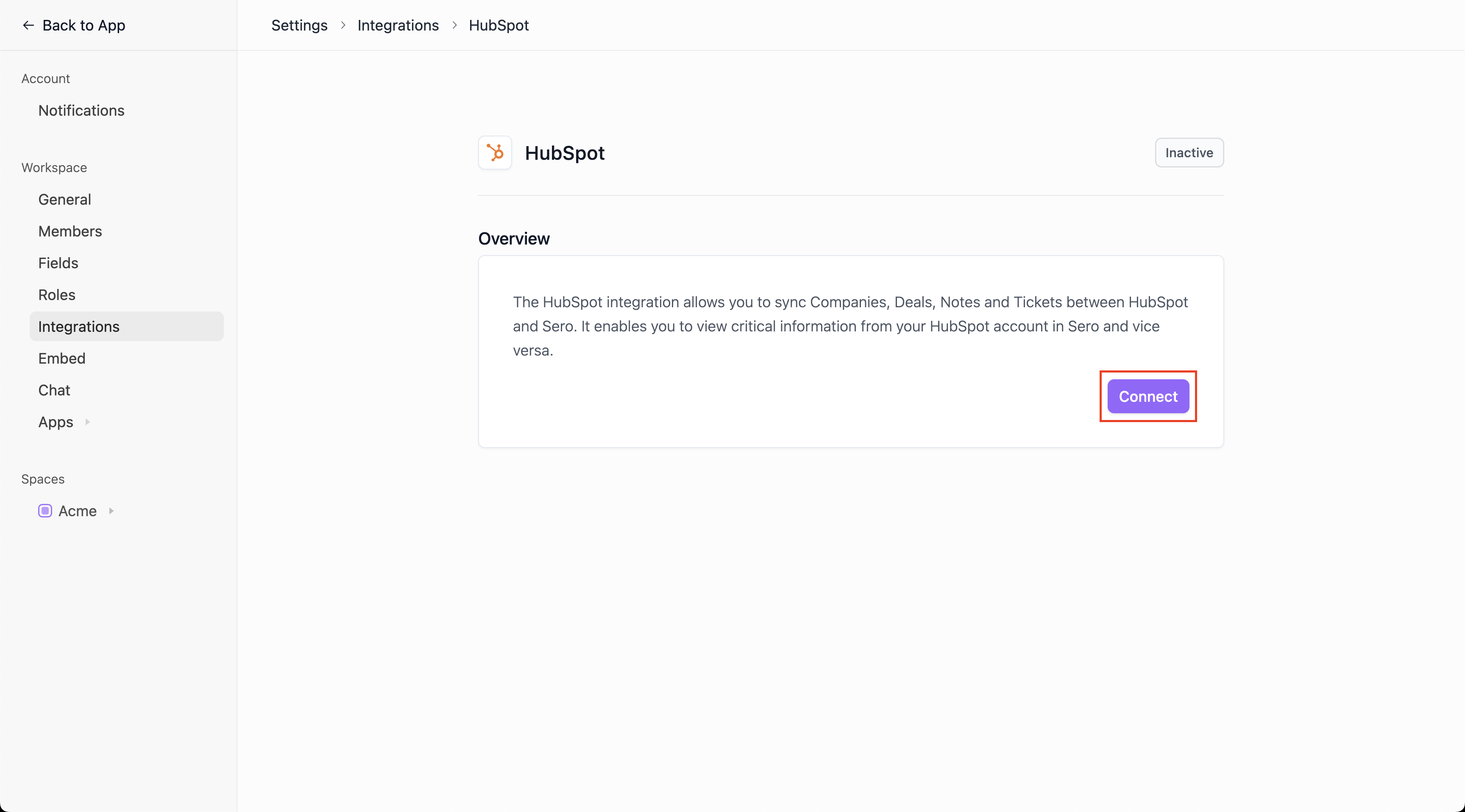
Locate the HubSpot card and click on it.

Click on the Connect button.
Companies, Deals and Notes are synced by default. Select if you want to sync Tickets as well.
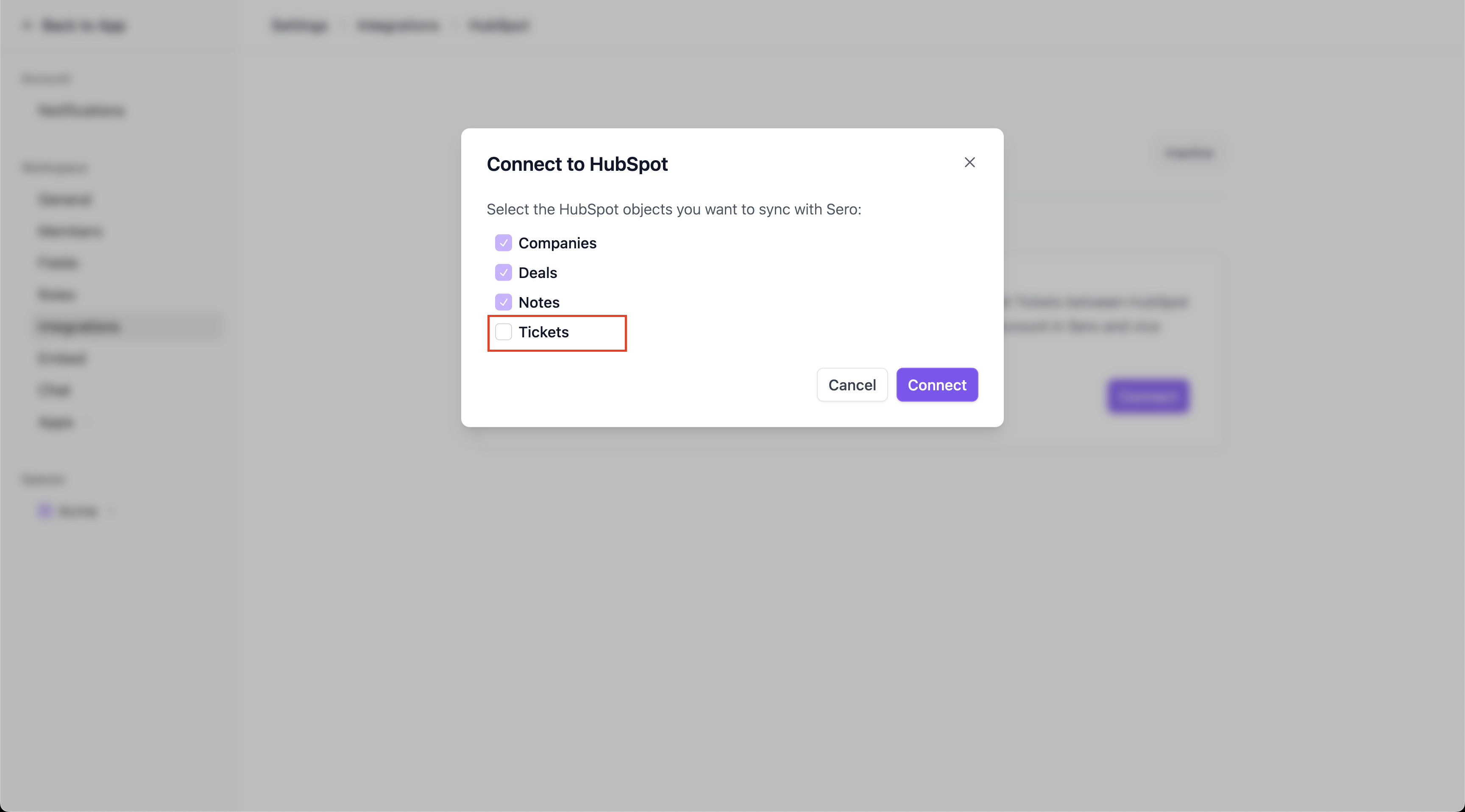
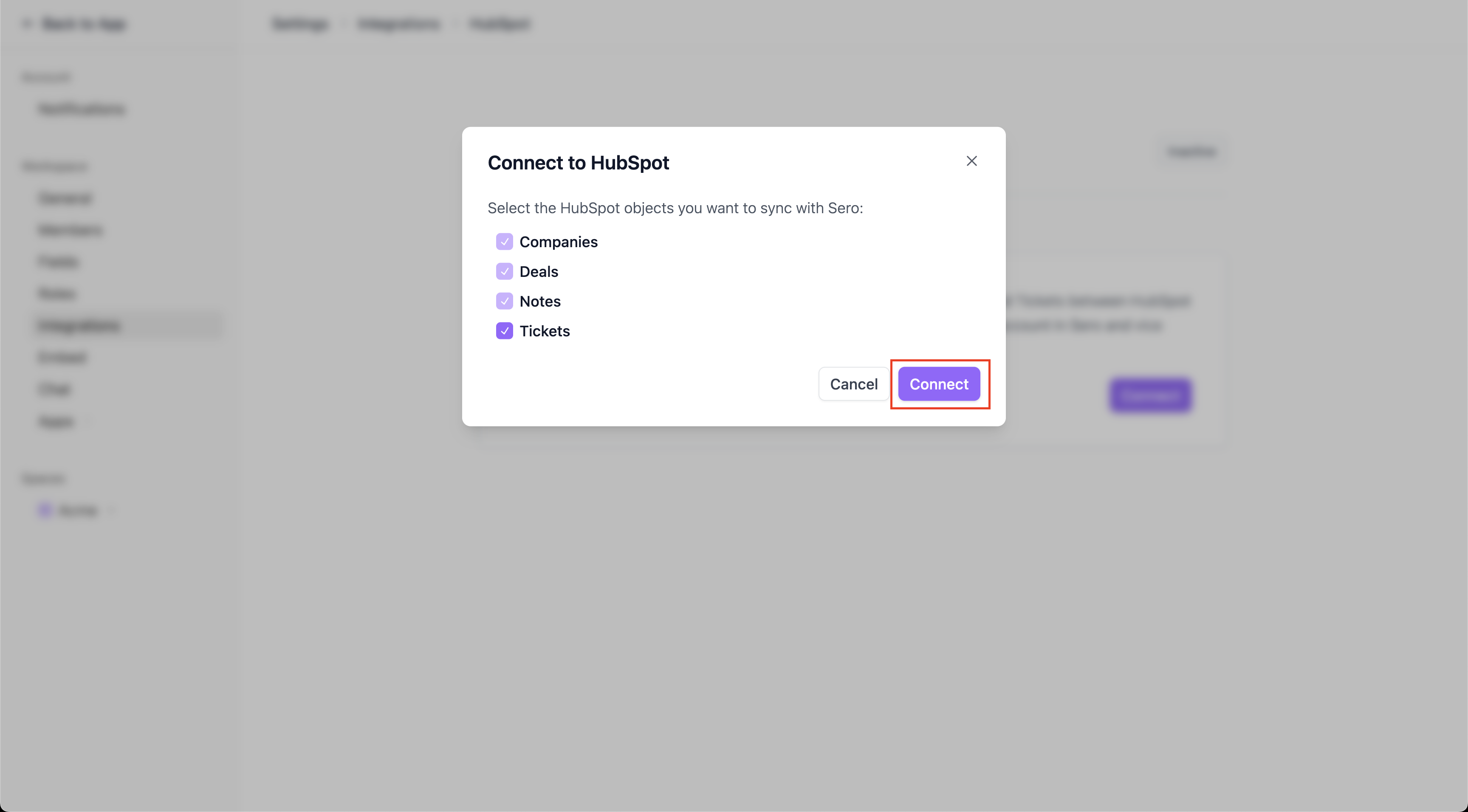
Then click Connect.
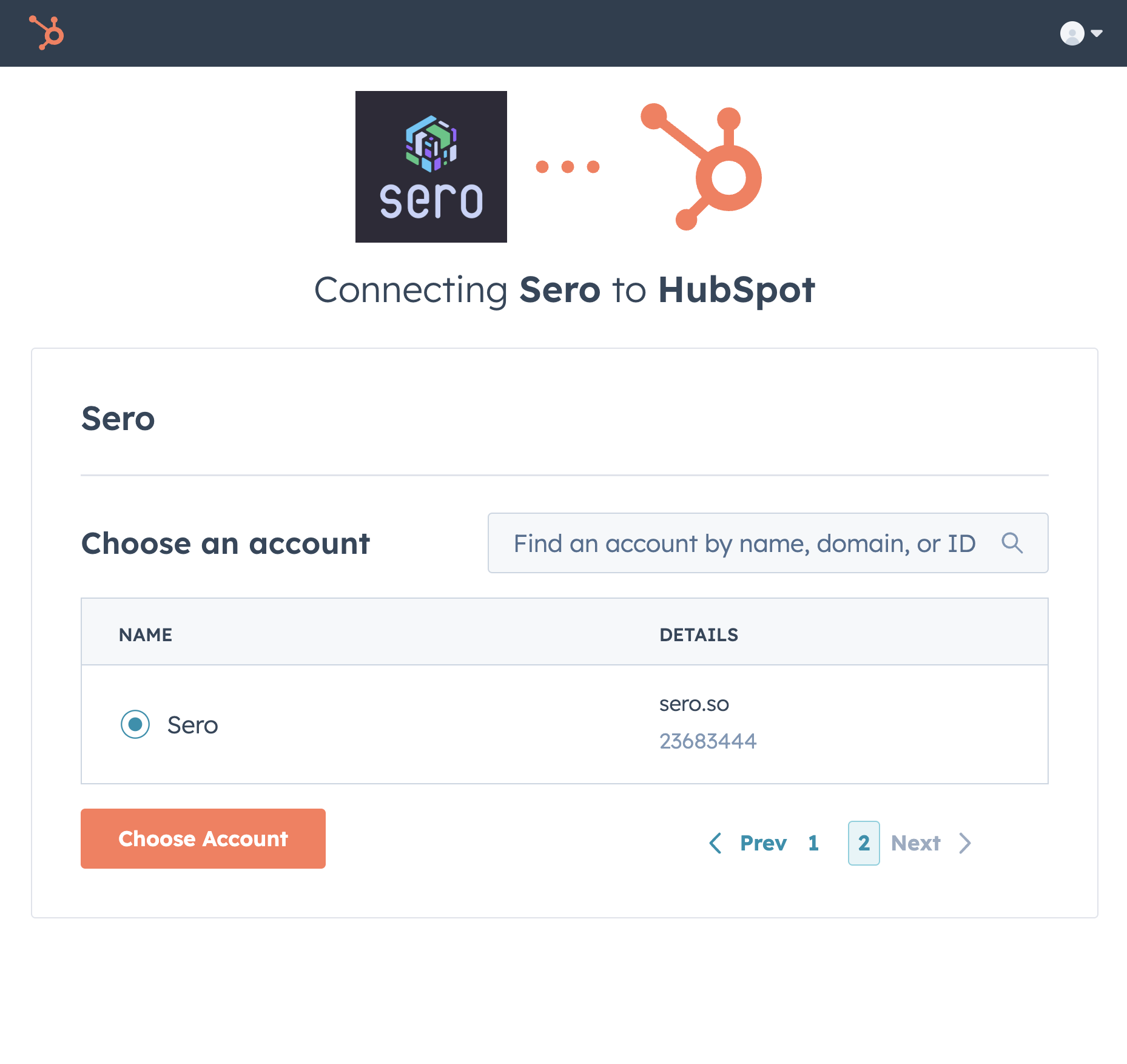
Select your HubSpot account.
Click Choose Account.
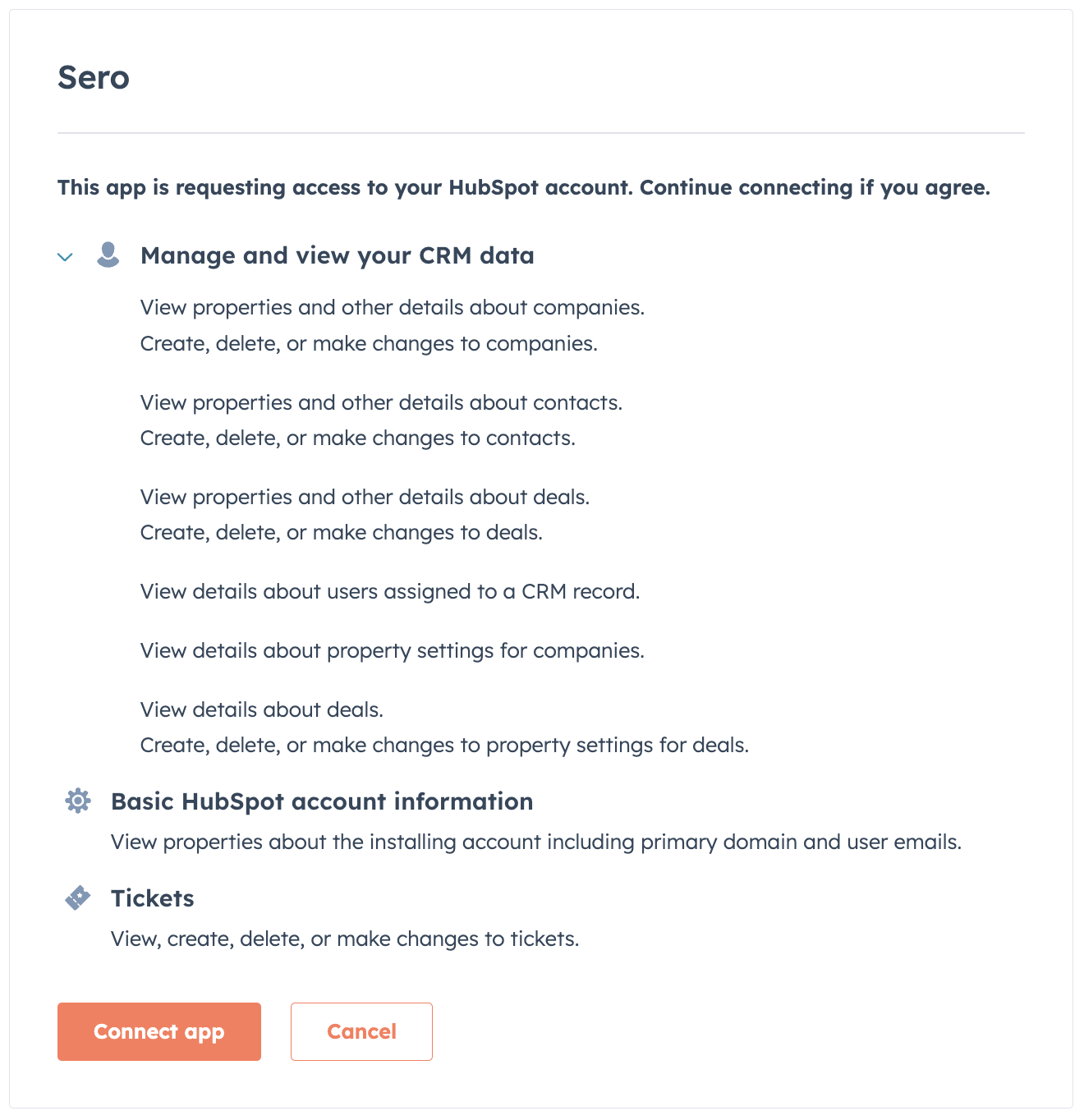
Review the requested scopes on this screen. Sero requests access to read and write companies, deals, tickets & contacts as well as read and edit company, deal, ticket & contact properties.
Click Connect app.
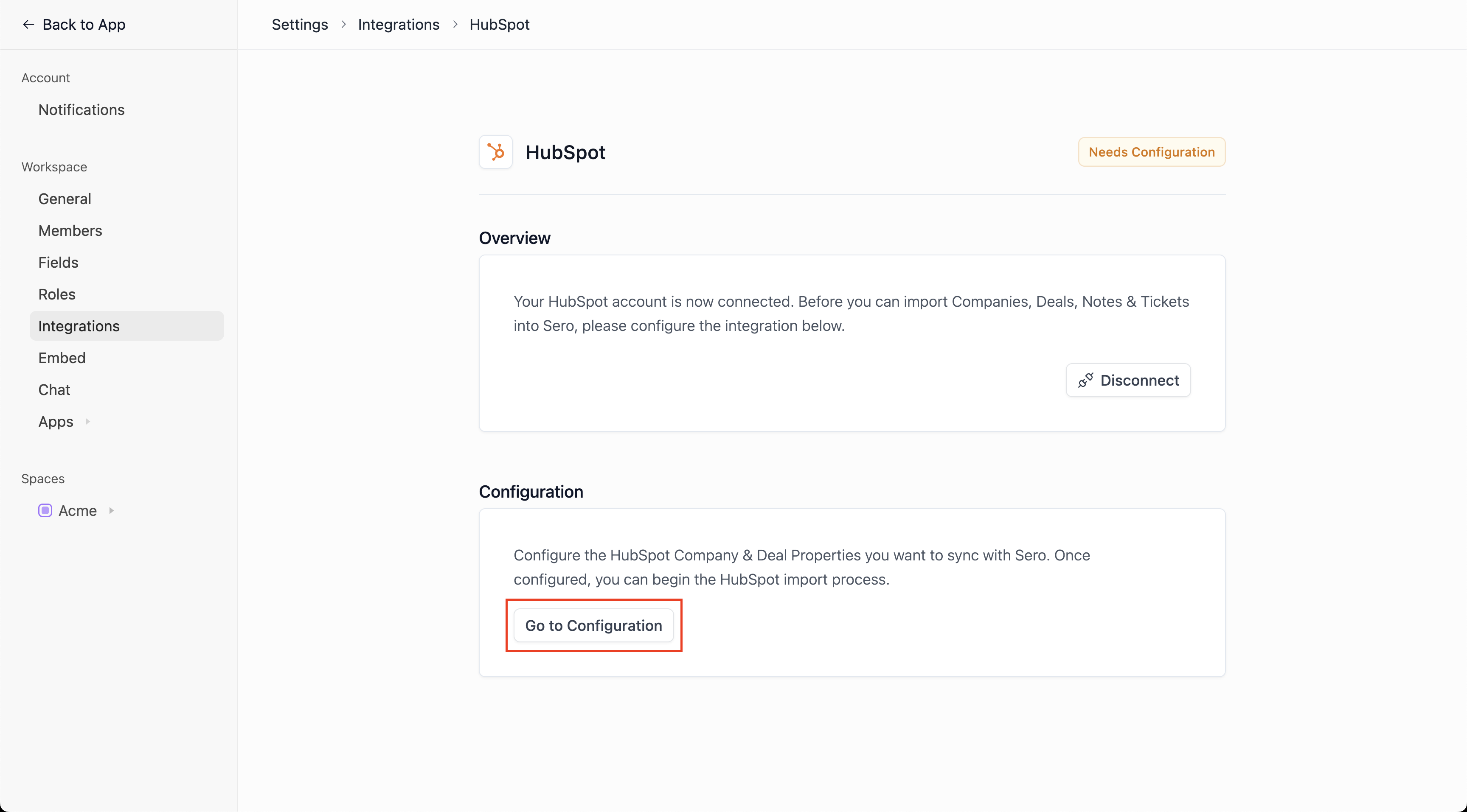
You will be redirected to the Sero “Integrations” page, and new configuration options will appear.
Configure the app
In your Sero account, navigate to Settings → Integrations → HubSpot.
Click on Go to Configuration.
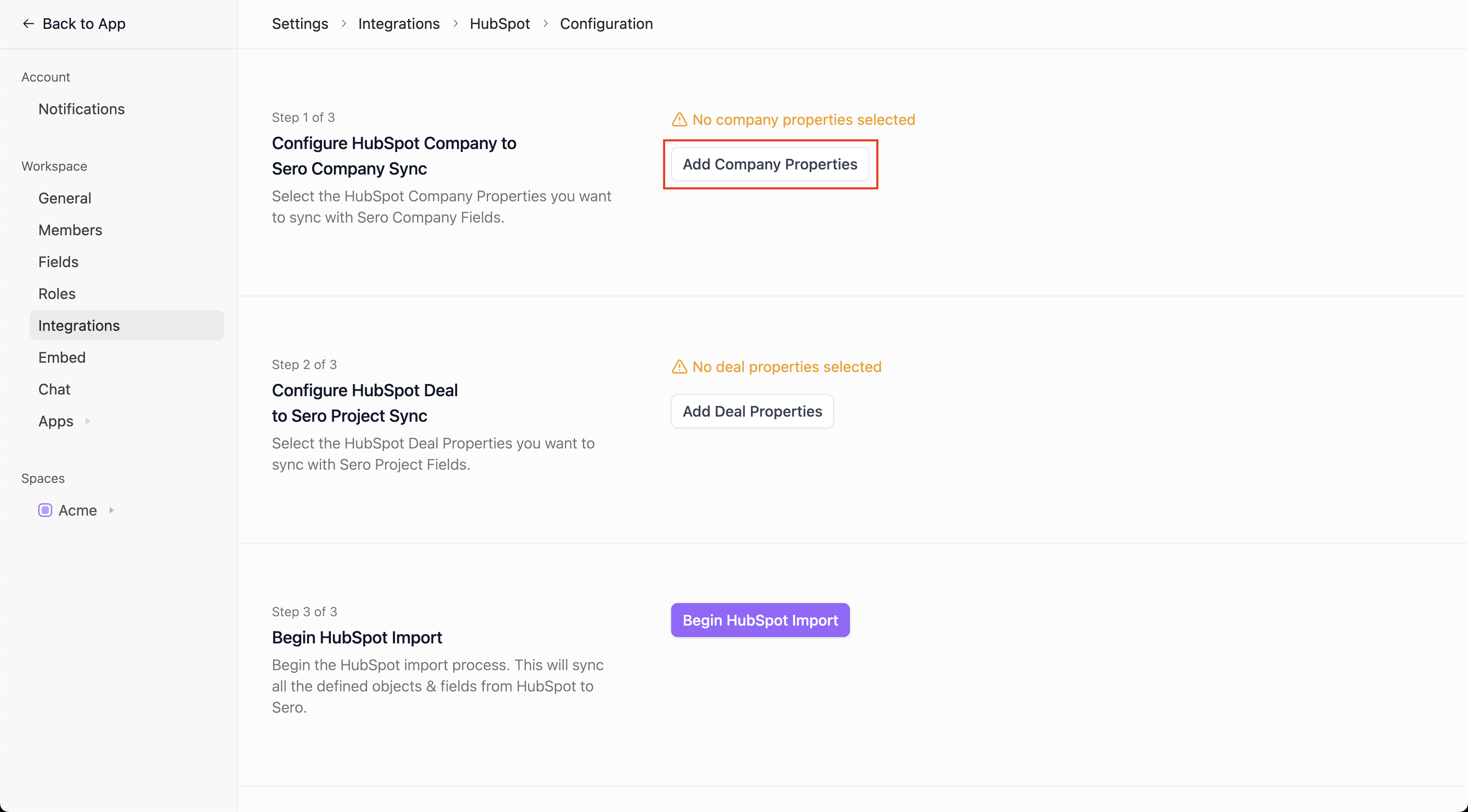
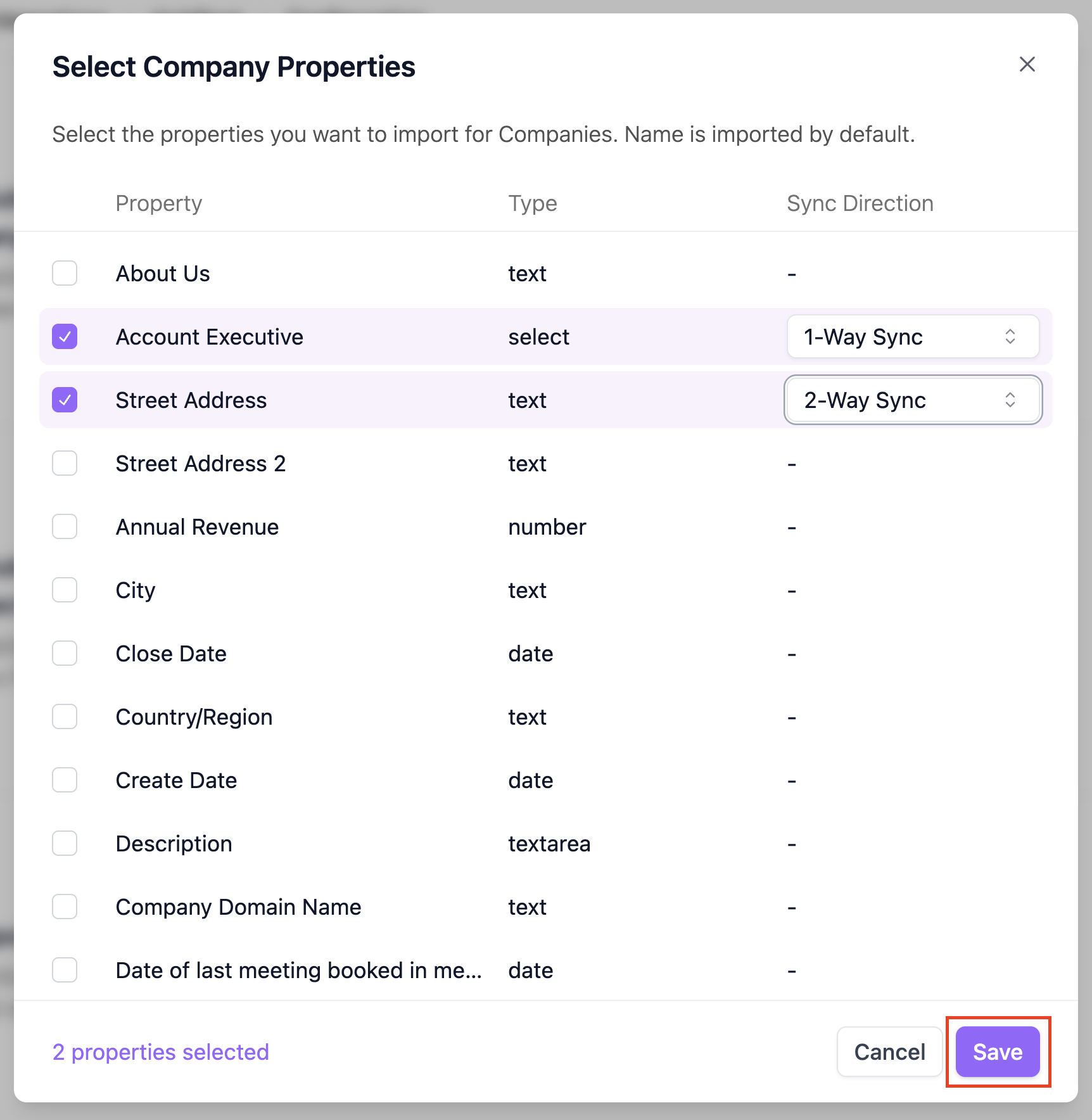
Click on Add Company Properties.
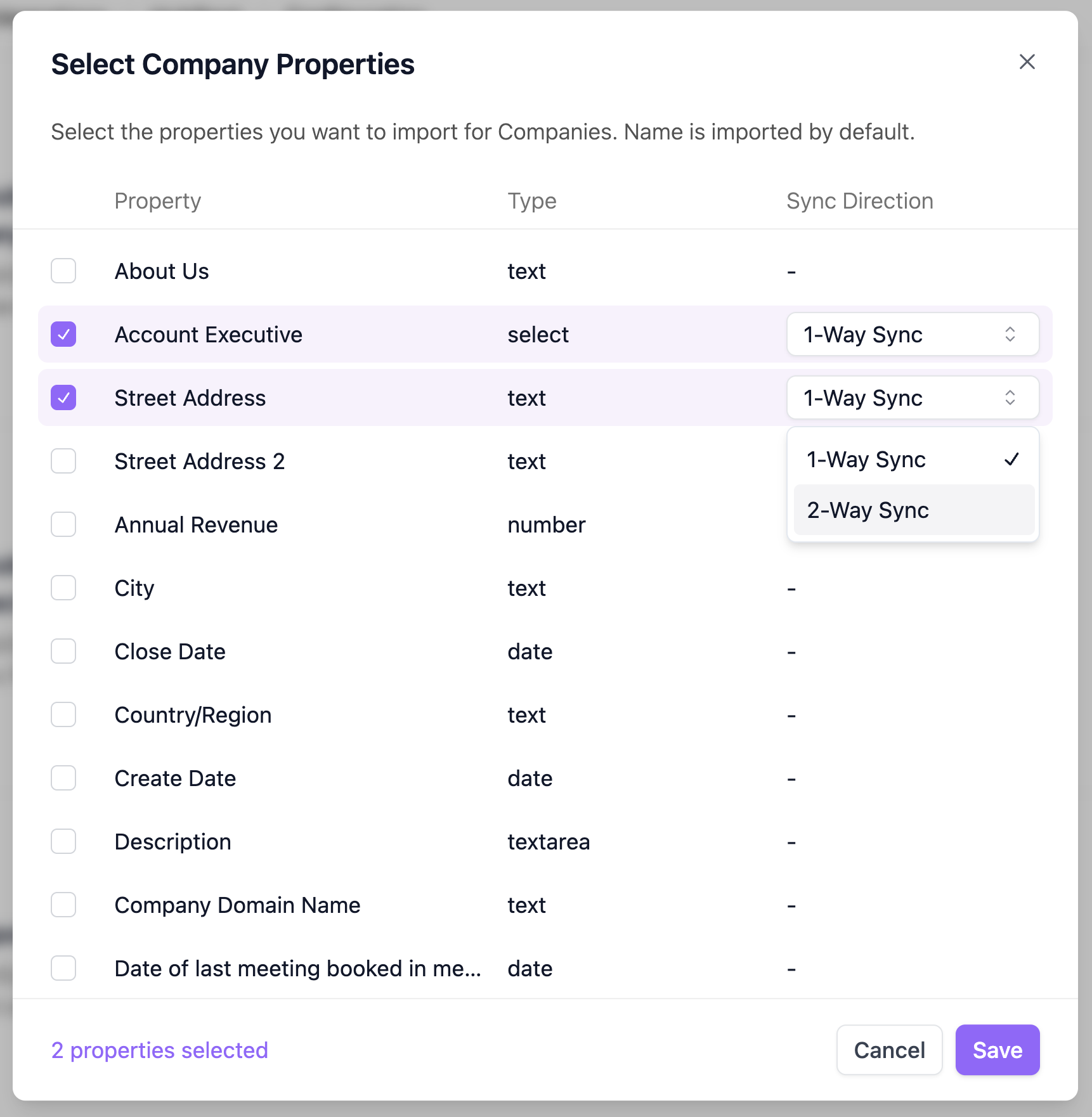
Select the HubSpot Company properties you want to sync with Sero Company Fields. Also select the Sync direction: 1-Way Sync from HubSpot to Sero or 2-Way Sync from HubSpot to Sero and Sero to HubSpot.
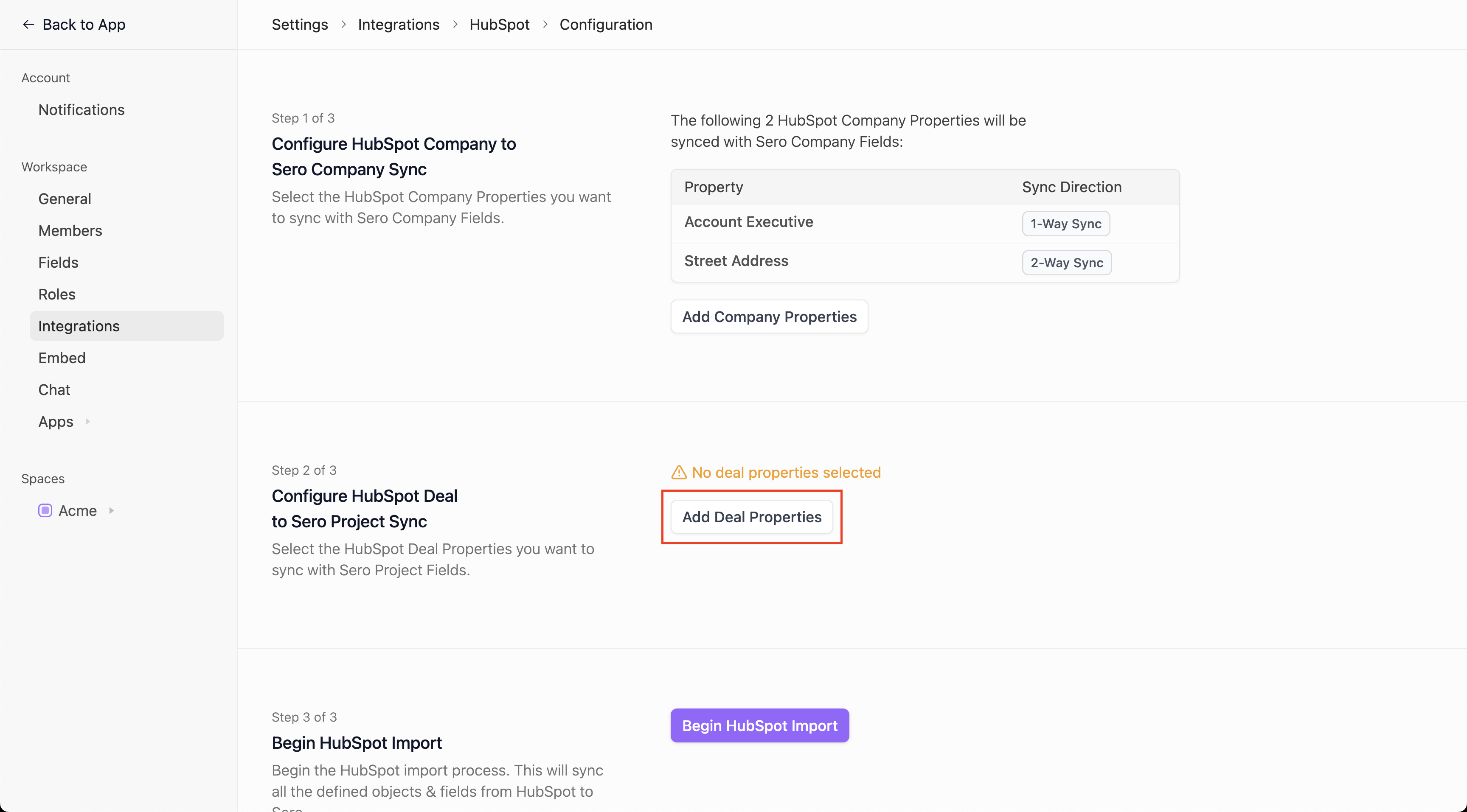
Click Save.
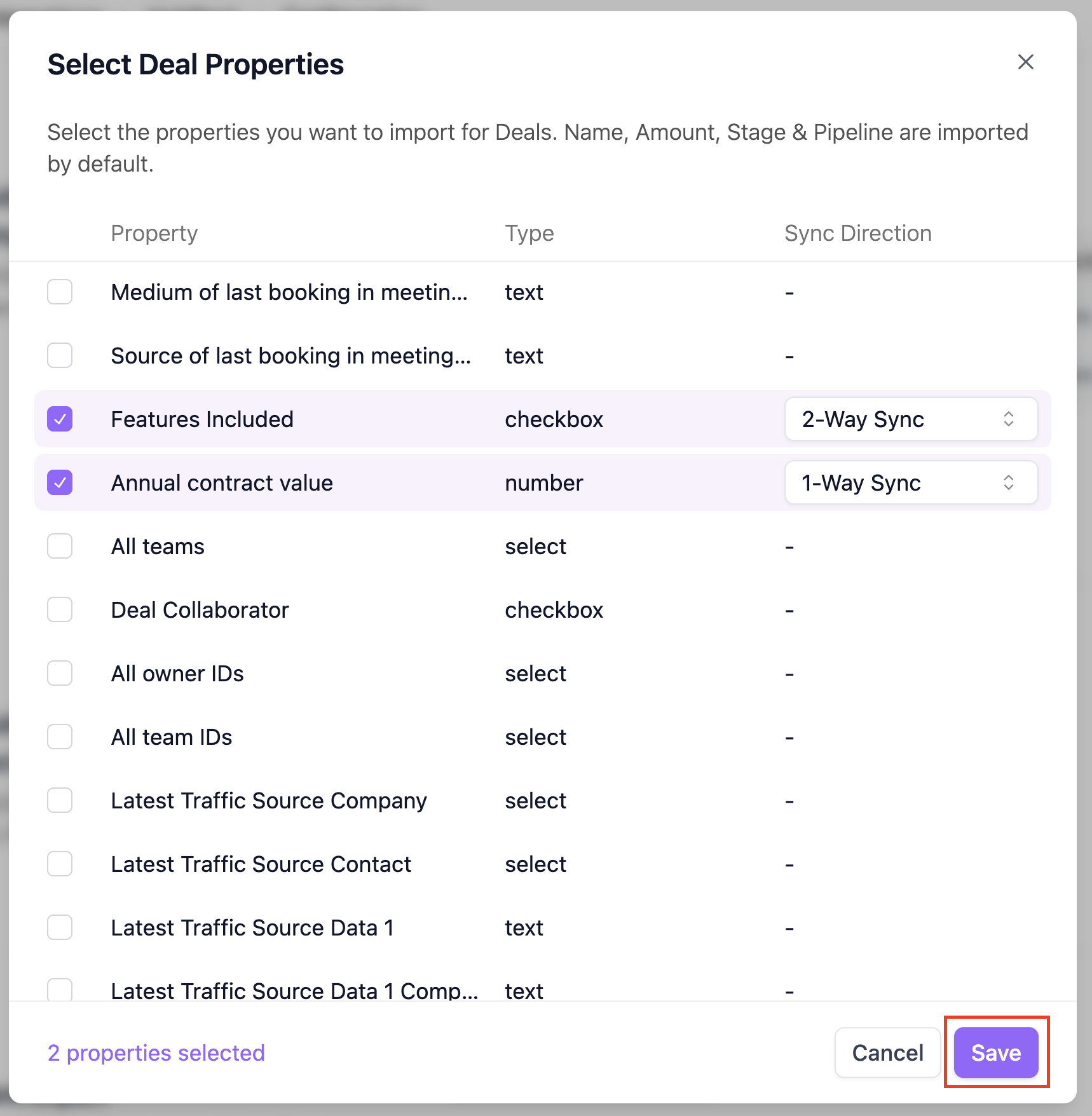
Next, click on Add Deal Properties.
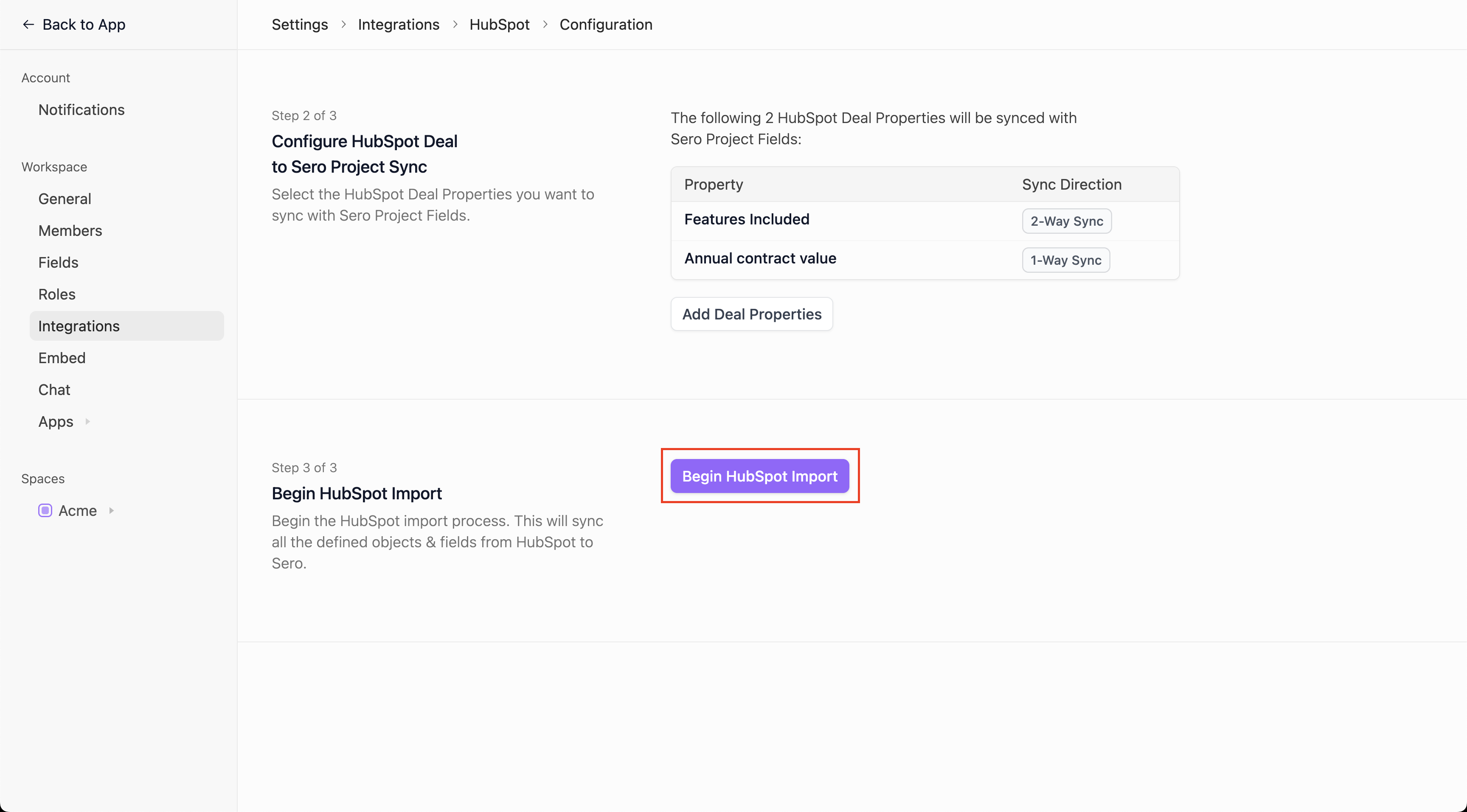
Select the HubSpot Deal properties you want to sync with Sero Project Fields. Also select the Sync direction: 1-Way Sync from HubSpot to Sero or 2-Way Sync from HubSpot to Sero and Sero to HubSpot. Then click Save.
Click Begin HubSpot Import.
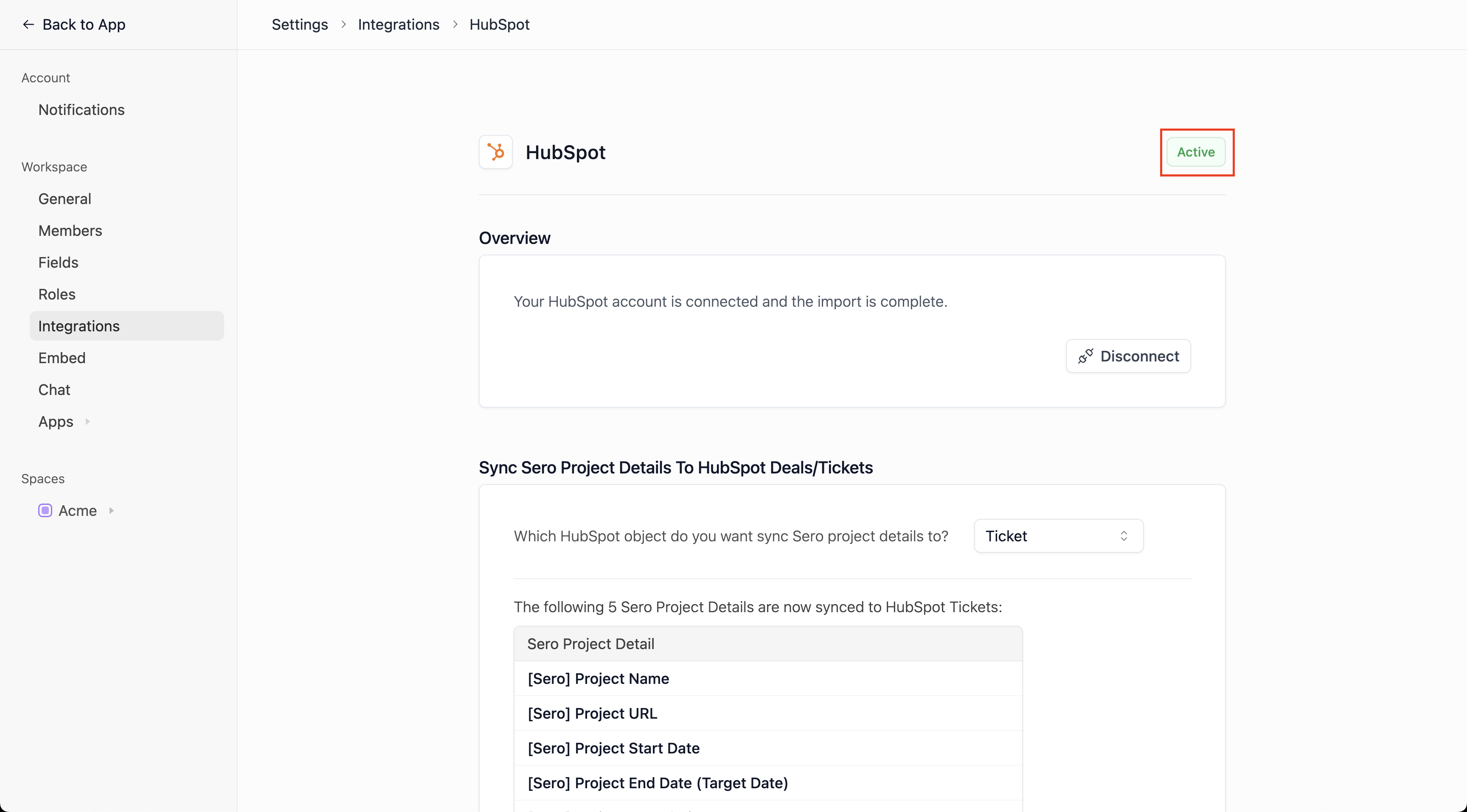
You will be redirected back to the HubSpot integration page. Wait for the HubSpot integration to be Active.
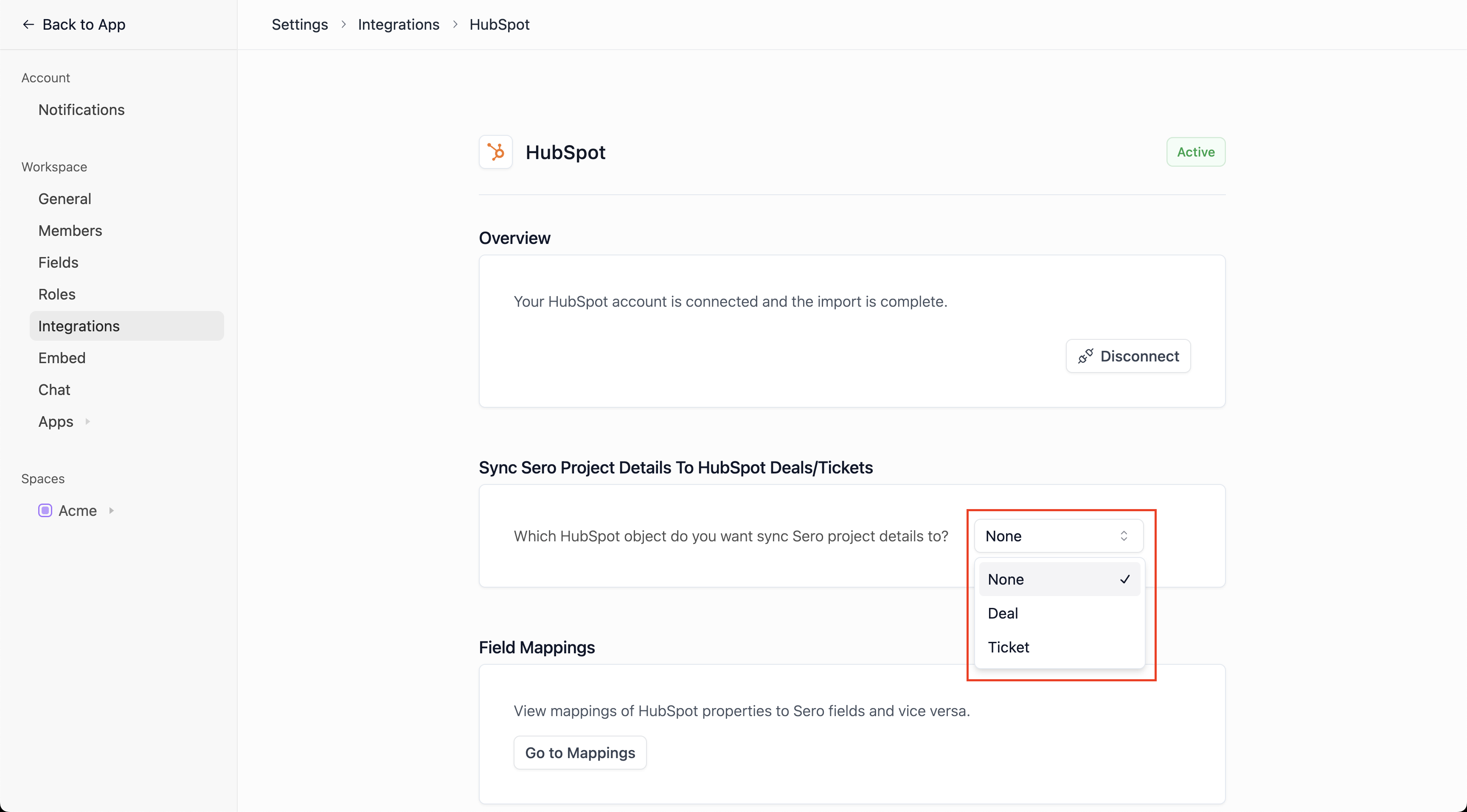
You can now choose to sync Sero Project Details back to HubSpot objects. To do so, select the HubSpot object you would like to write back to.
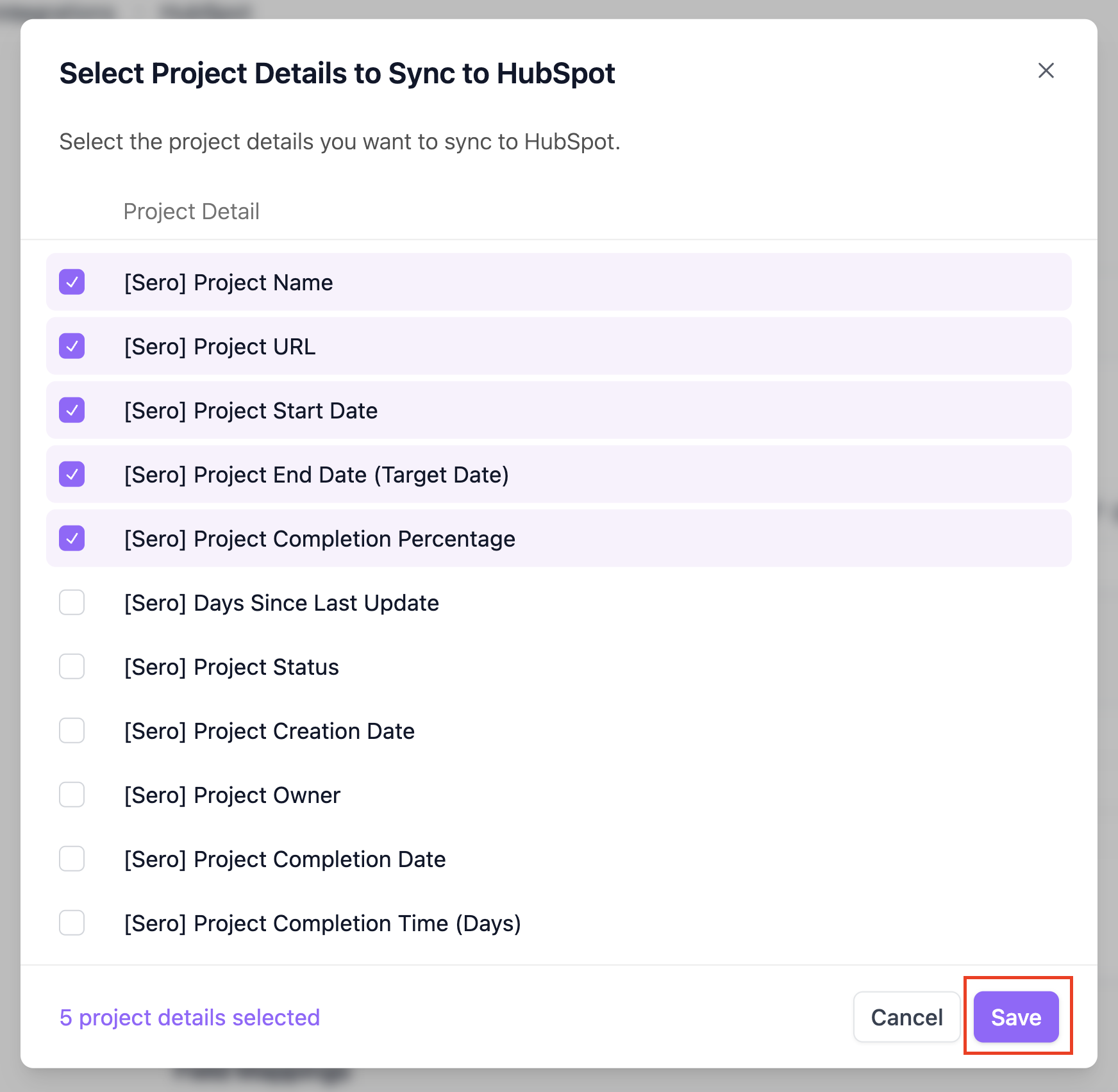
Once you have made the selection, click on Add Sero Project Details.
Select the Project Details you would like to sync to HubSpot and click Save.
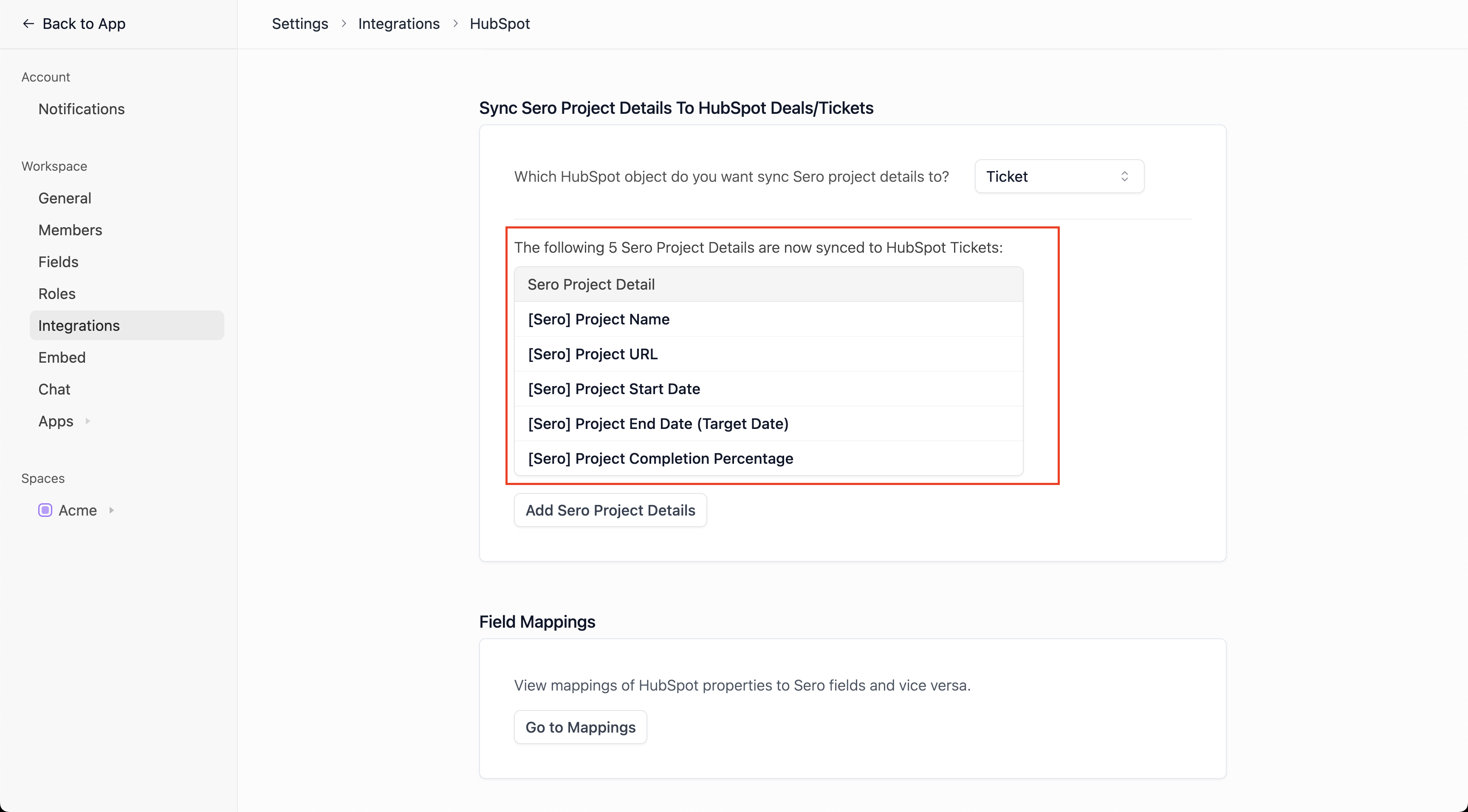
You will now see the Sero Project Details that are being synced to HubSpot.
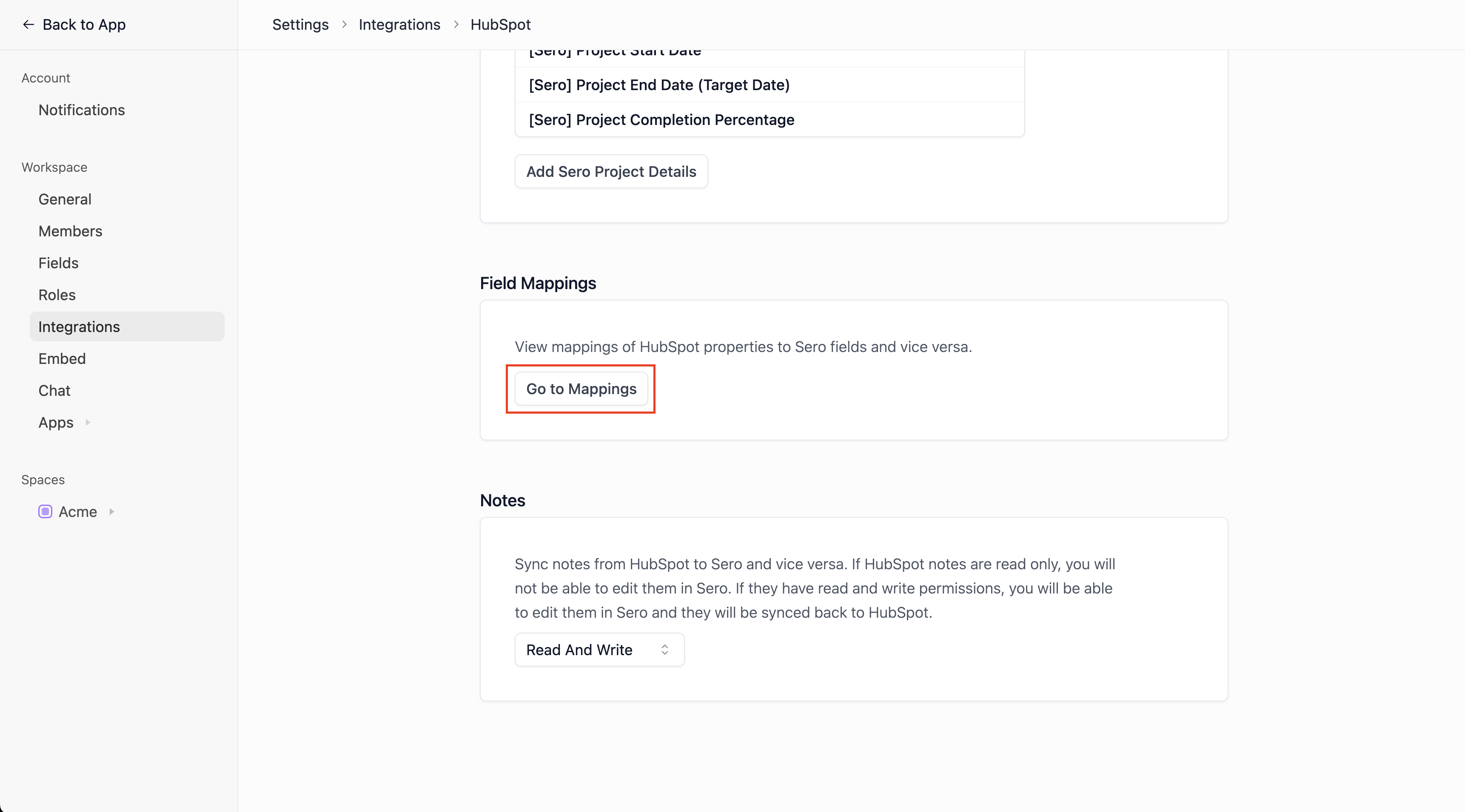
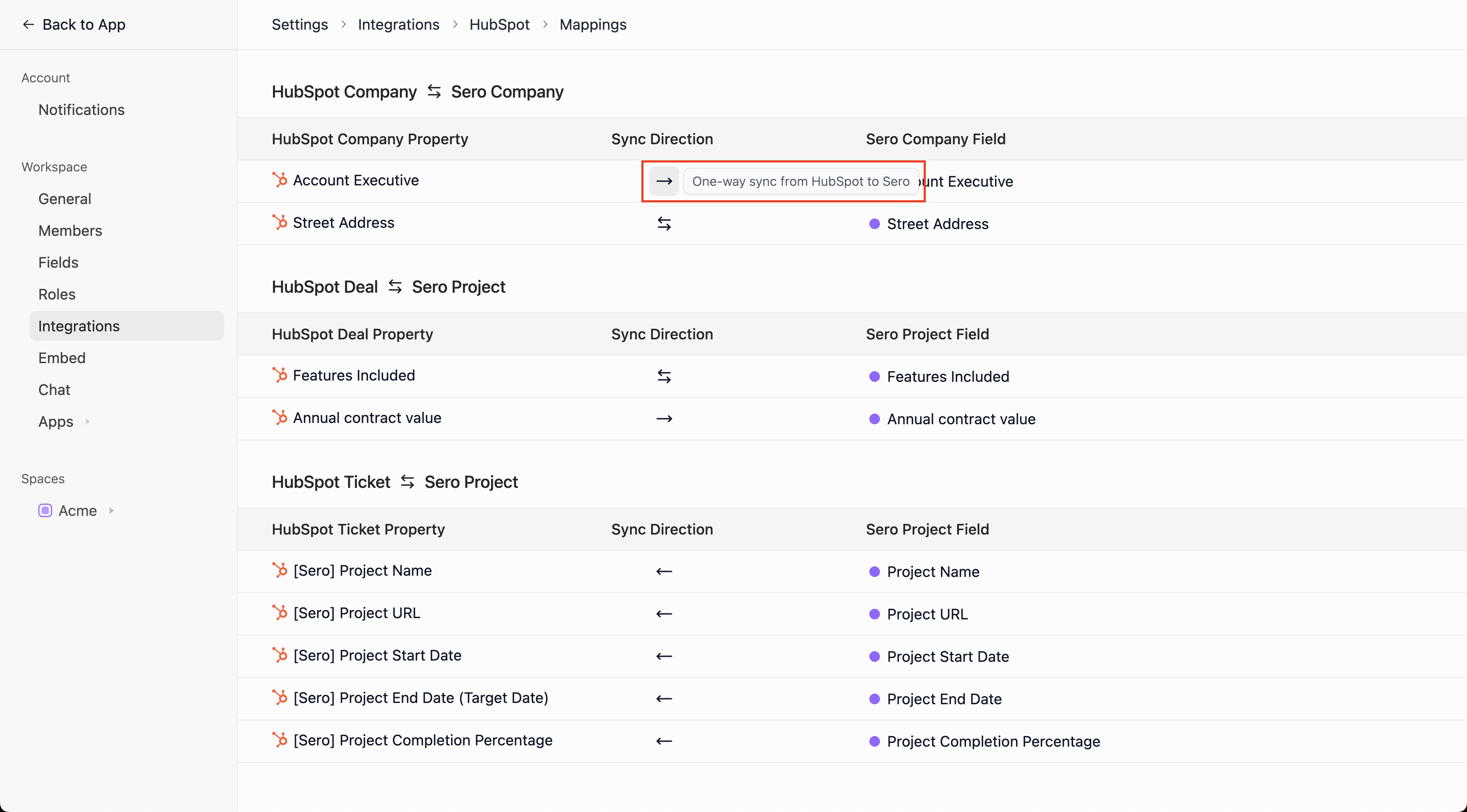
You can also view the existing HubSpot Property to Sero Field mappings. To do so, click on Go to Mappings.
In here you can see which HubSpot properties are synced to which Sero fields & the sync direction.
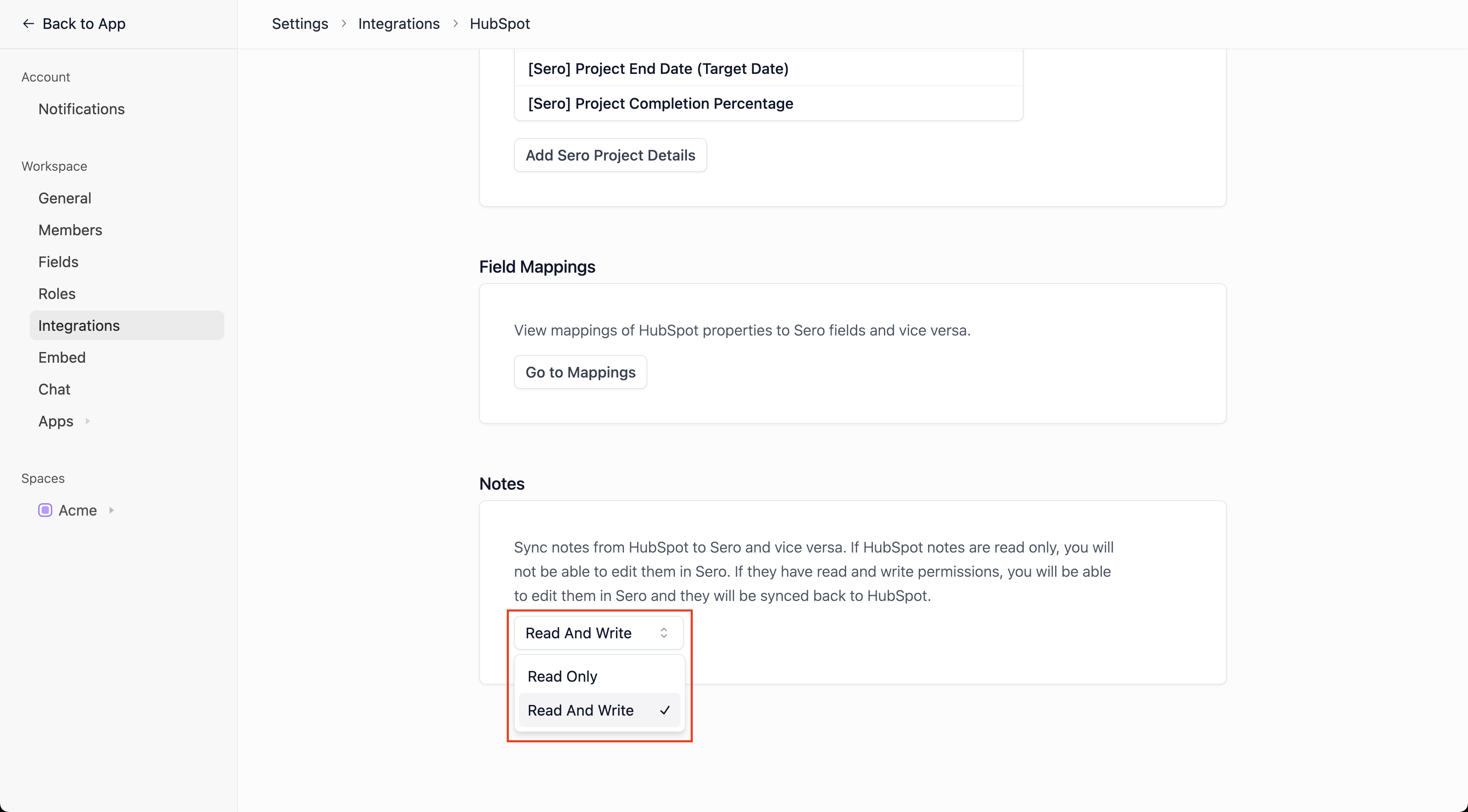
On the HubSpot integration page, you can also set whether you would like the Notes to Read Only (HubSpot to Sero) or Read & Write (HubSpot to Sero & Sero to HubSpot).

That's all in terms of the configuration of the HubSpot integration!
Using the HubSpot Integration
Sero automatically keeps your Sero Companies synced with your HubSpot Companies, according to the settings configured in the previous section. Syncs run at least every 5 minutes. No manual actions are required.
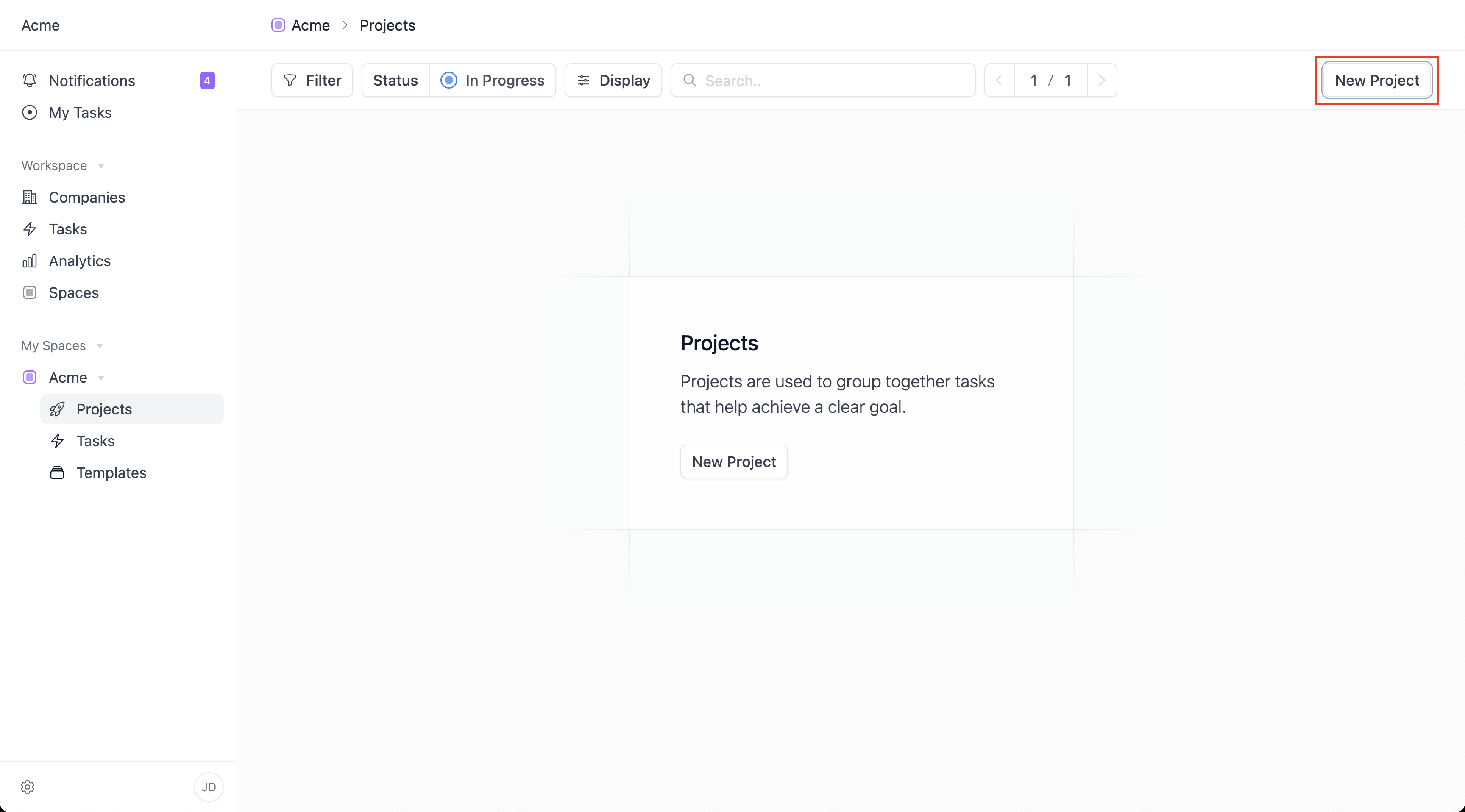
To launch a project go to the Projects tab in any space.
Click on New Project.
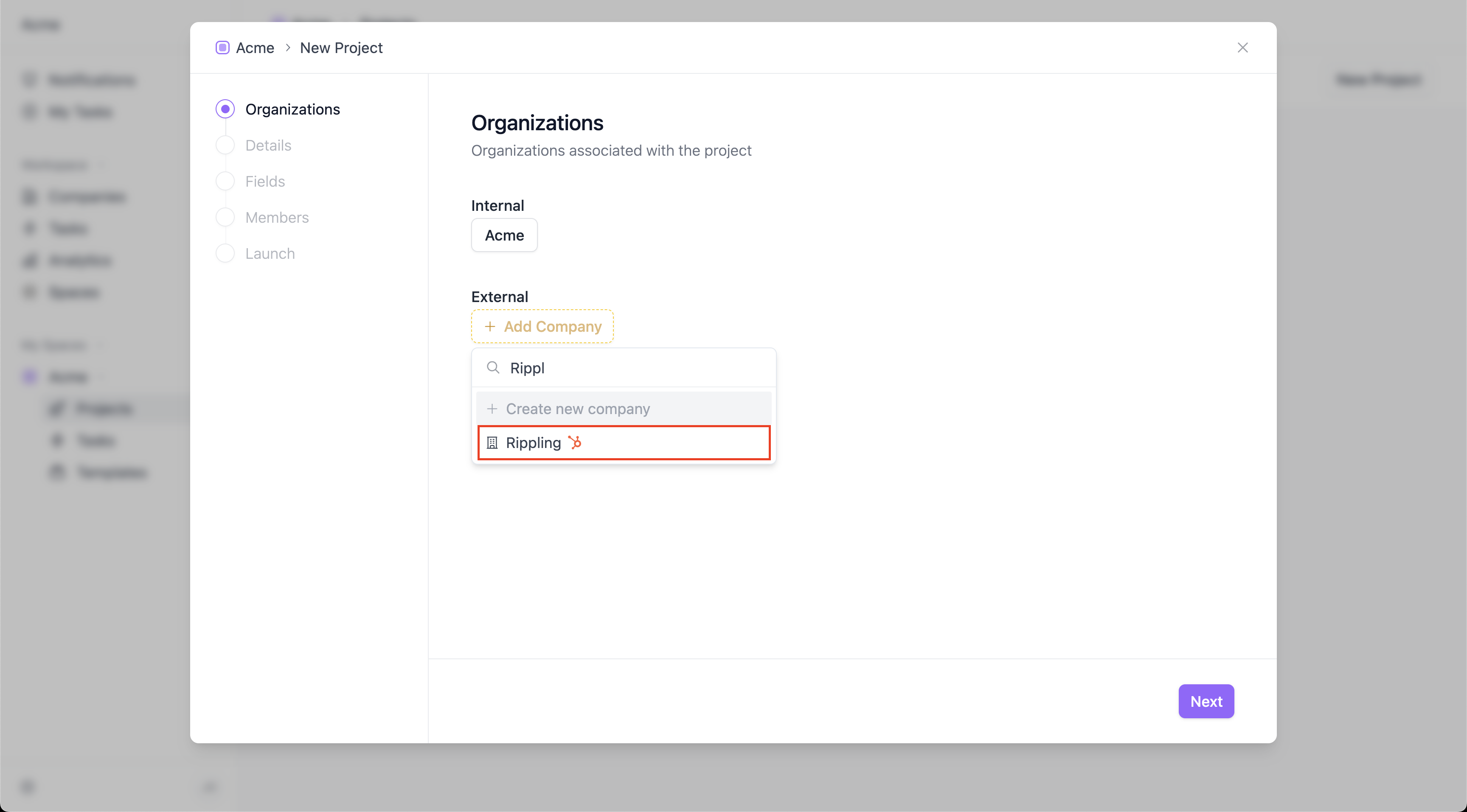
When launching projects you can select an external Company. The companies dropdown will be auto-populated with companies from HubSpot. Select one of them.
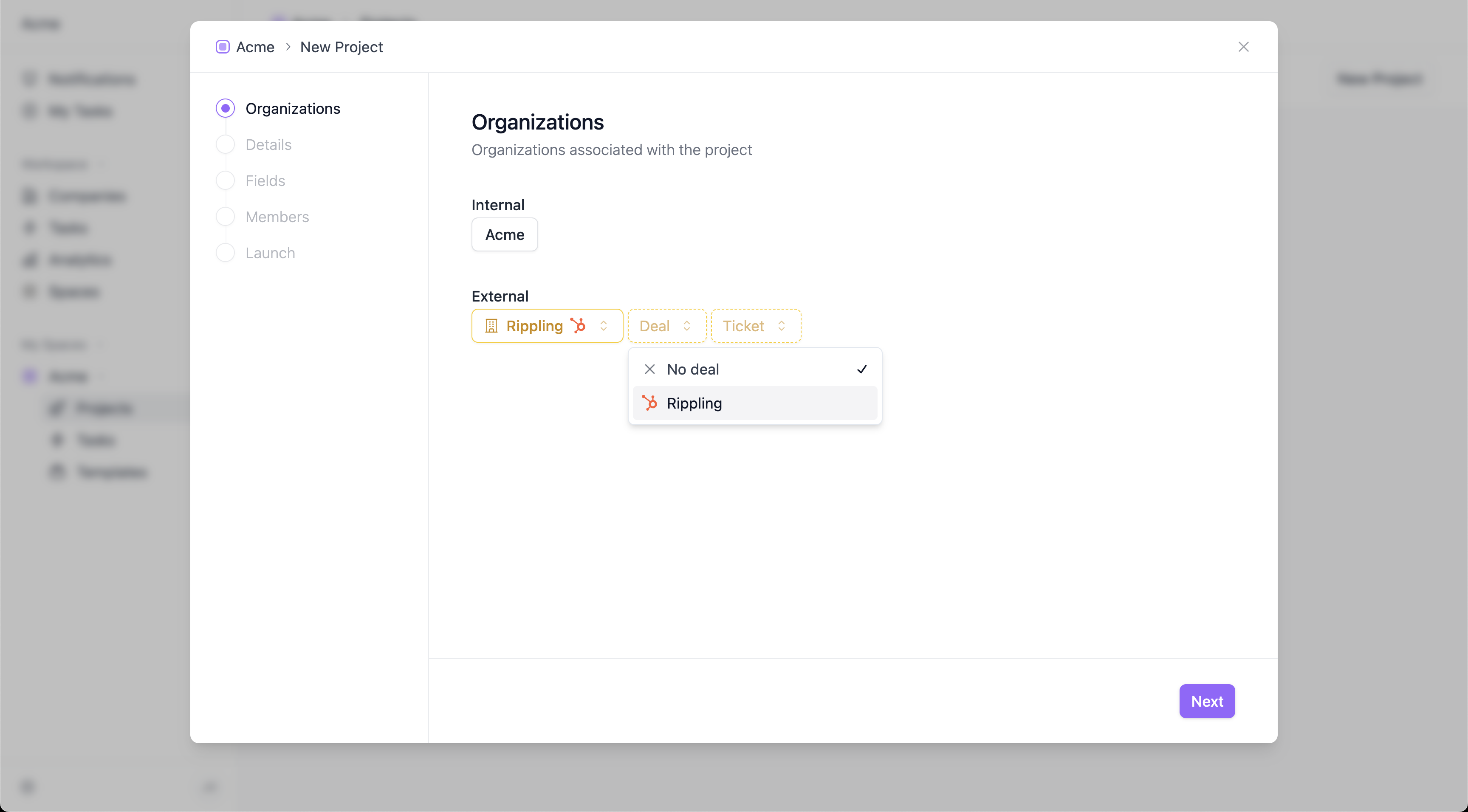
You can also select an associated Deal.
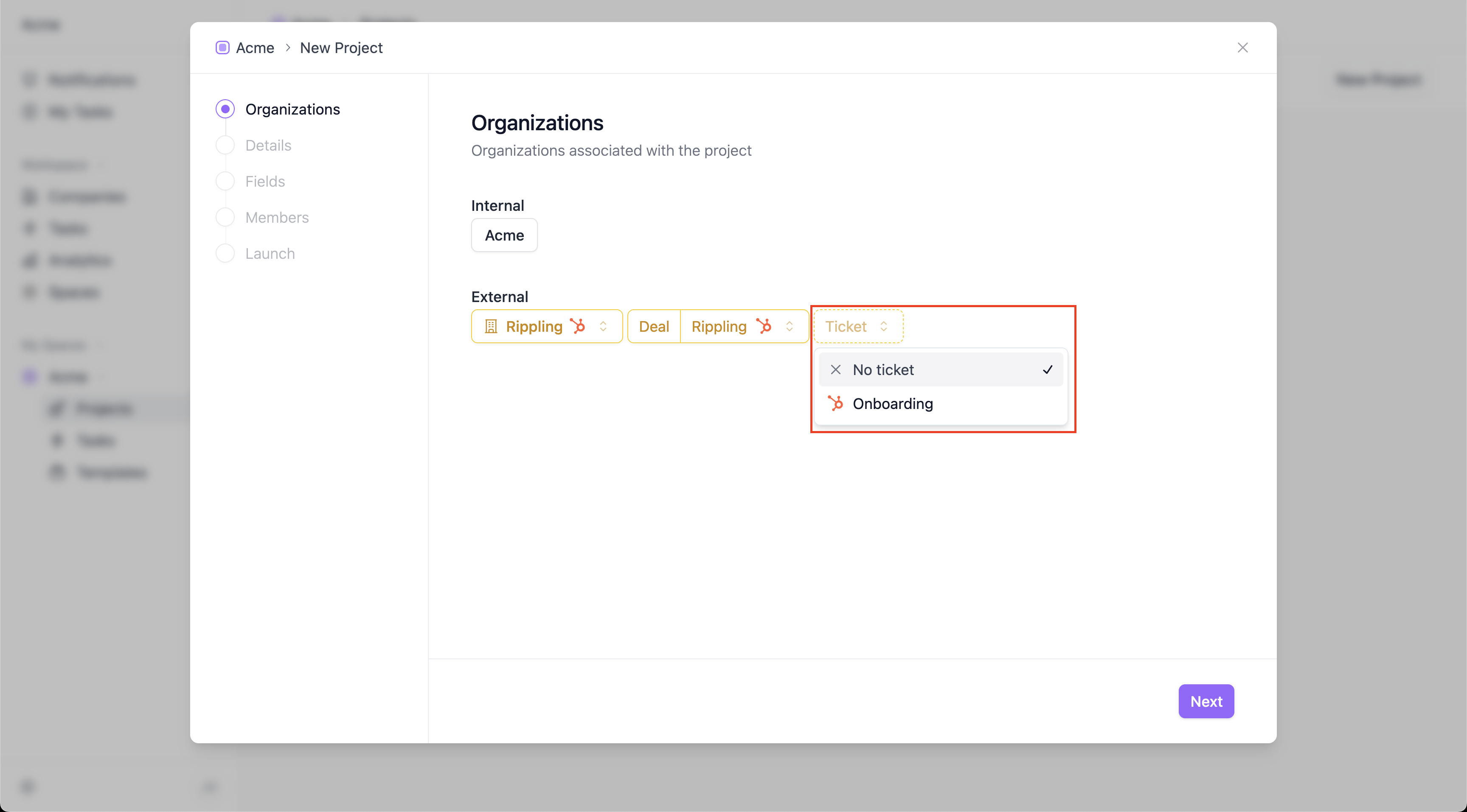
You can also select an associated Ticket.
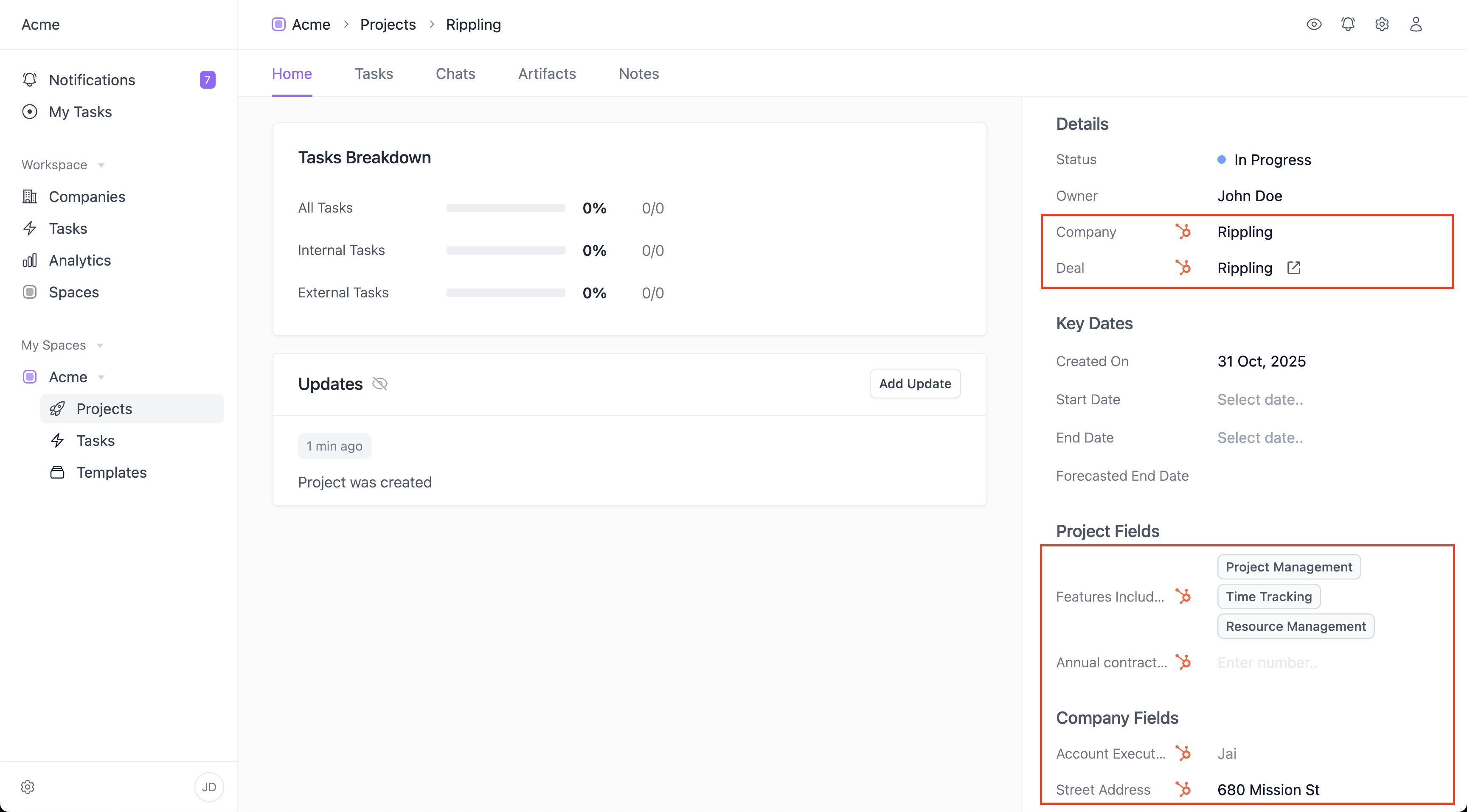
Once you go ahead and launch the project, you will see the associated HubSpot properties in the Home tab of the project!

Disconnect the app
Note: If you disconnect your HubSpot account from Sero, Sero Companies, Projects & Notes data will no longer sync to HubSpot Companies, Deals, Notes & Tickets and vice versa. Existing data will remain on your HubSpot records.
Log in to Sero.
Navigate to Settings > Integrations.
Locate the HubSpot card and click on it.
Click Disconnect.
Click Disconnect again.


Uninstall the app
To uninstall Sero from your HubSpot account, follow the instructions in this HubSpot Knowledge Base article.