Dynamic Project Templates
Dynamic Project Templates let you create one master project template that can automatically be tailored to each new customer's requirements. For example, imagine you sell:
Core Platform
Analytics Add-on
Premium Support Add-on
Some customers buy only Core. Some buy Core + Analytics. Some buy Core + Analytics + Premium Support. Let's also assume that within Analytics itself, customers can buy specific modules. Instead of building and maintaining a different template for every possible combination, you create a single Project Template with conditional logic at the stage & task level:
“Create Stage: Analytics only if” → Add-on contains
Analytics“Create Stage: Premium Support only if” → Add-on contains
Premium Support"Create Task: Analytics Dashboard Module only if" → Modules contains
Dashboard
Why use Dynamic Project Templates?
Single Source of Truth: Most teams end up with “template sprawl.” Slight variations get copied, renamed, and slowly drift apart. With Dynamic Project Templates, you keep one master template and just describe when each piece applies.
Faster Kickoff: A project owner usually has to build a project plan manually based on the requirements. That creates inconsistency and adds delays. With Dynamic Project Templates, projects are created with the exact stage and tasks you need in seconds.
Process Standardization: Every team member follows the exact same logic for when to include something or not, creating a consistent experience for teams and customers.
How to configure project templates?
Navigate to the template configuration:
In any space, click Templates.
Click Projects.
Select the template you want to configure.
Go to the Configuration tab.
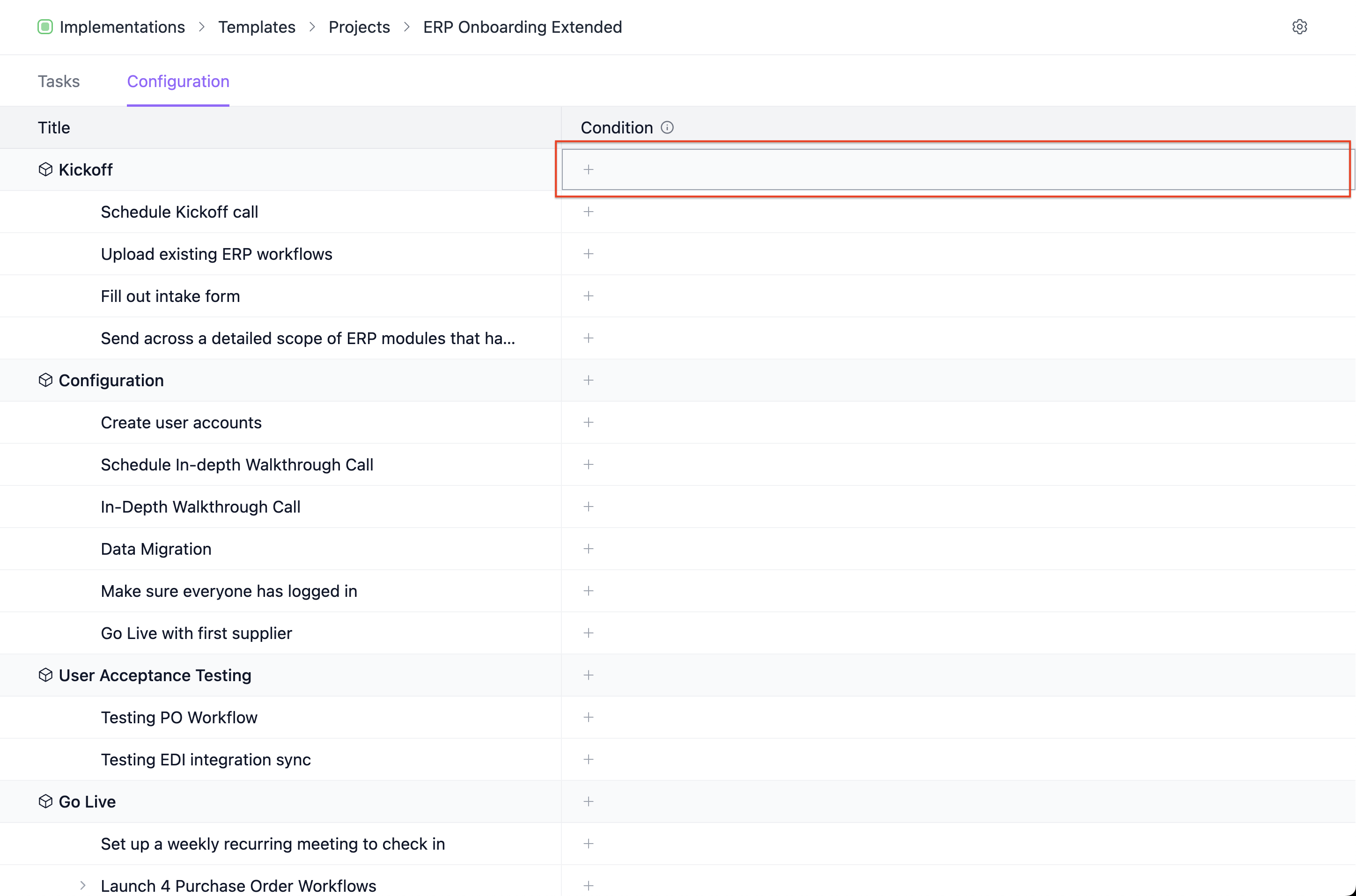
To add a condition to a stage, task or subtask, click on the cell with the + icon.
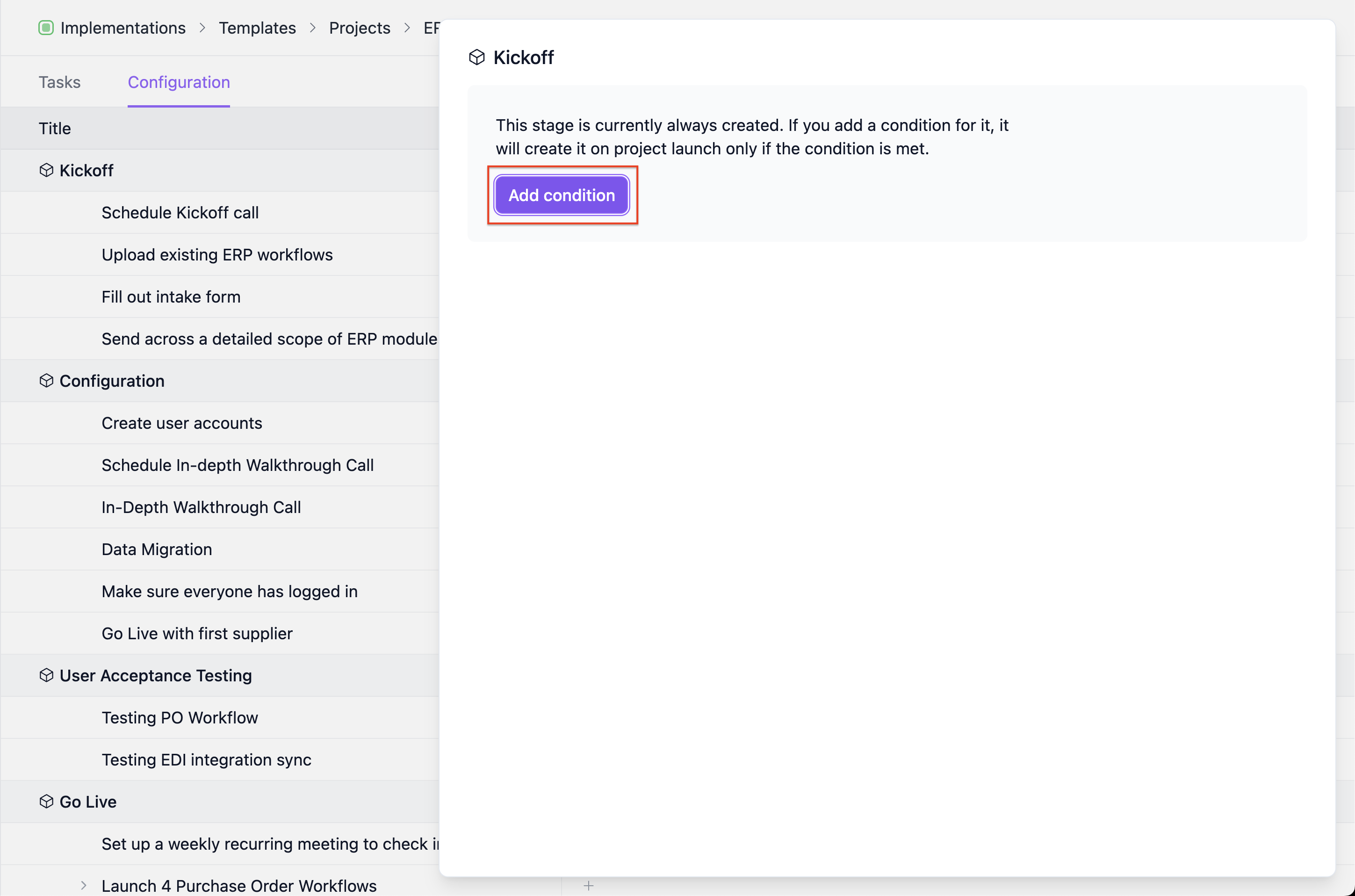
Click on Add Condition.
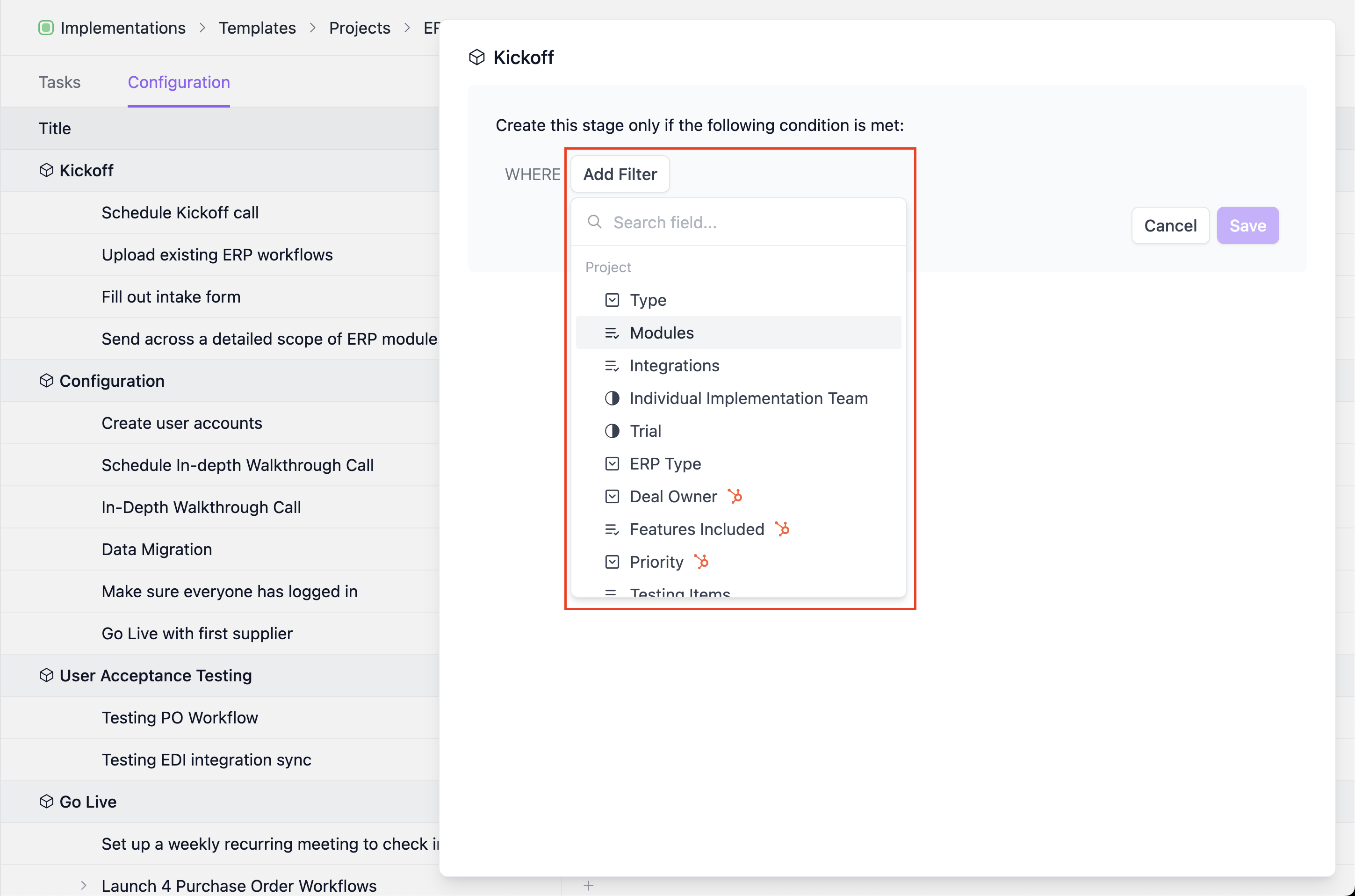
Select the Field you would like to base the condition on.
If you do not see any fields or want to add new fields, you can go to Workspace Settings → Fields and create them.
Sero offers integrations with CRMs such as Salesforce & HubSpot. Once integrated, you can access fields from your CRM when creating conditions. This supercharges conditions since you can now base them off of data captured during sales.
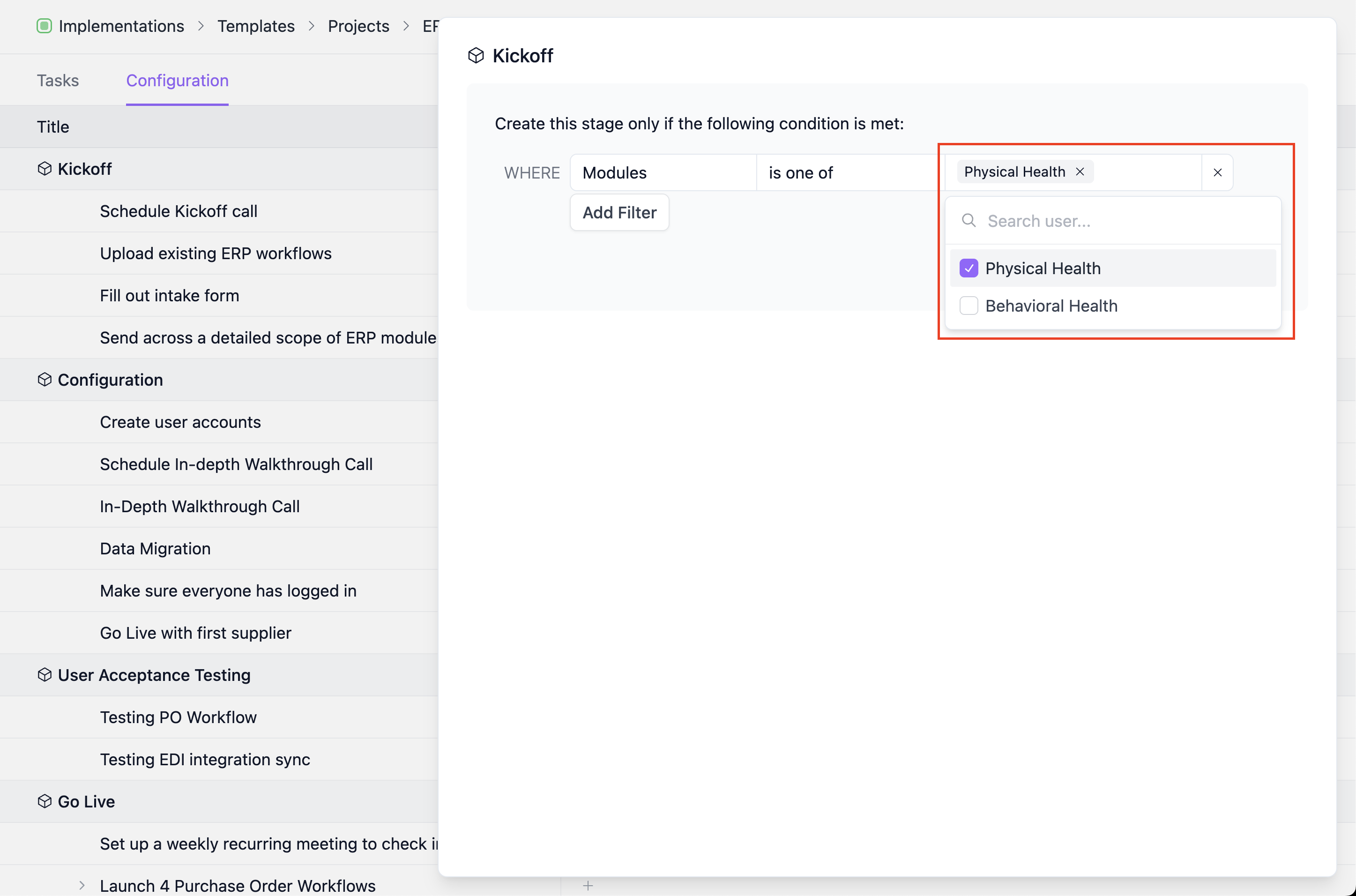
Set the condition for when it should be created.
Save it.
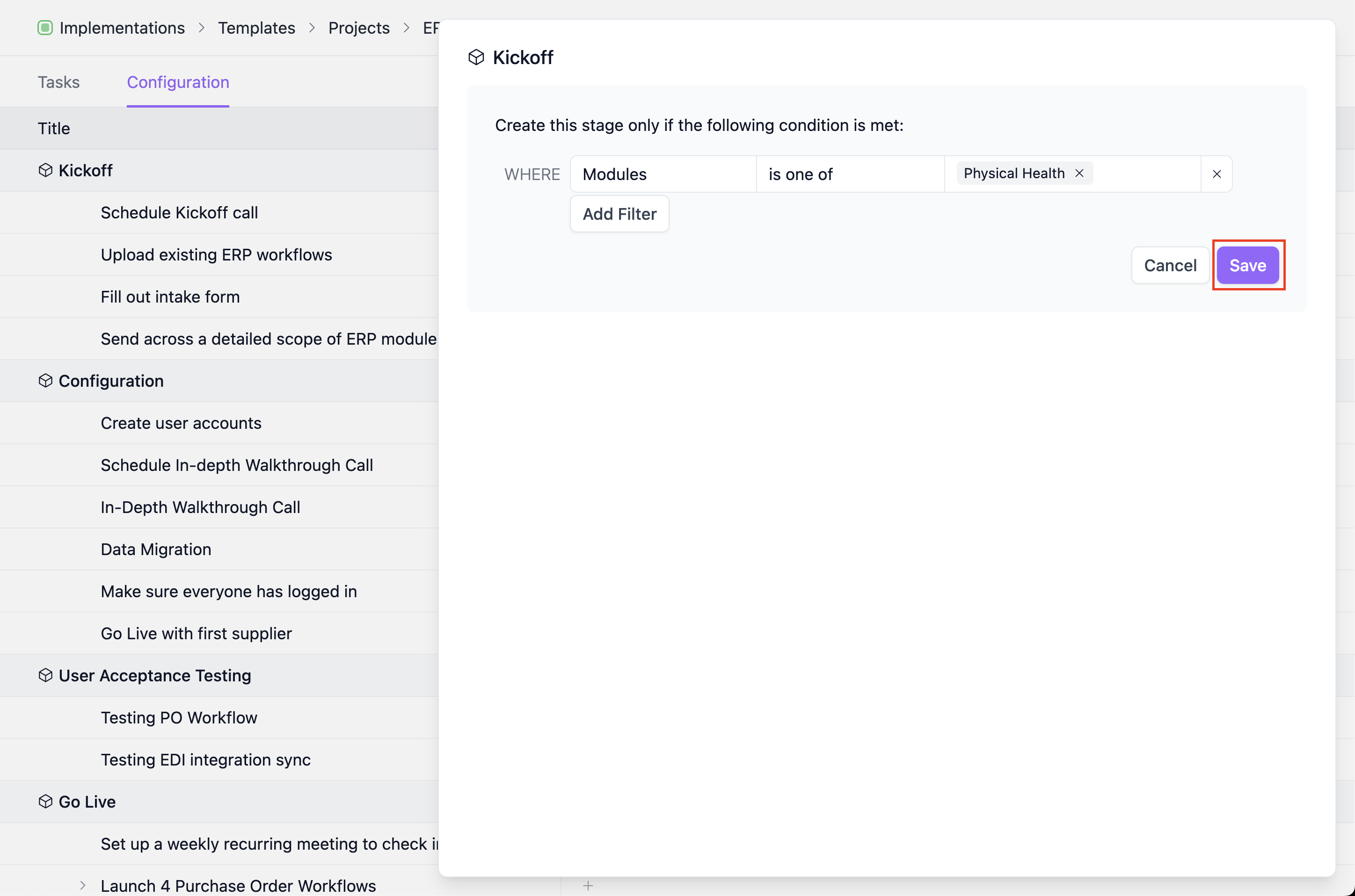
That's it!
Simulating conditions during project creation
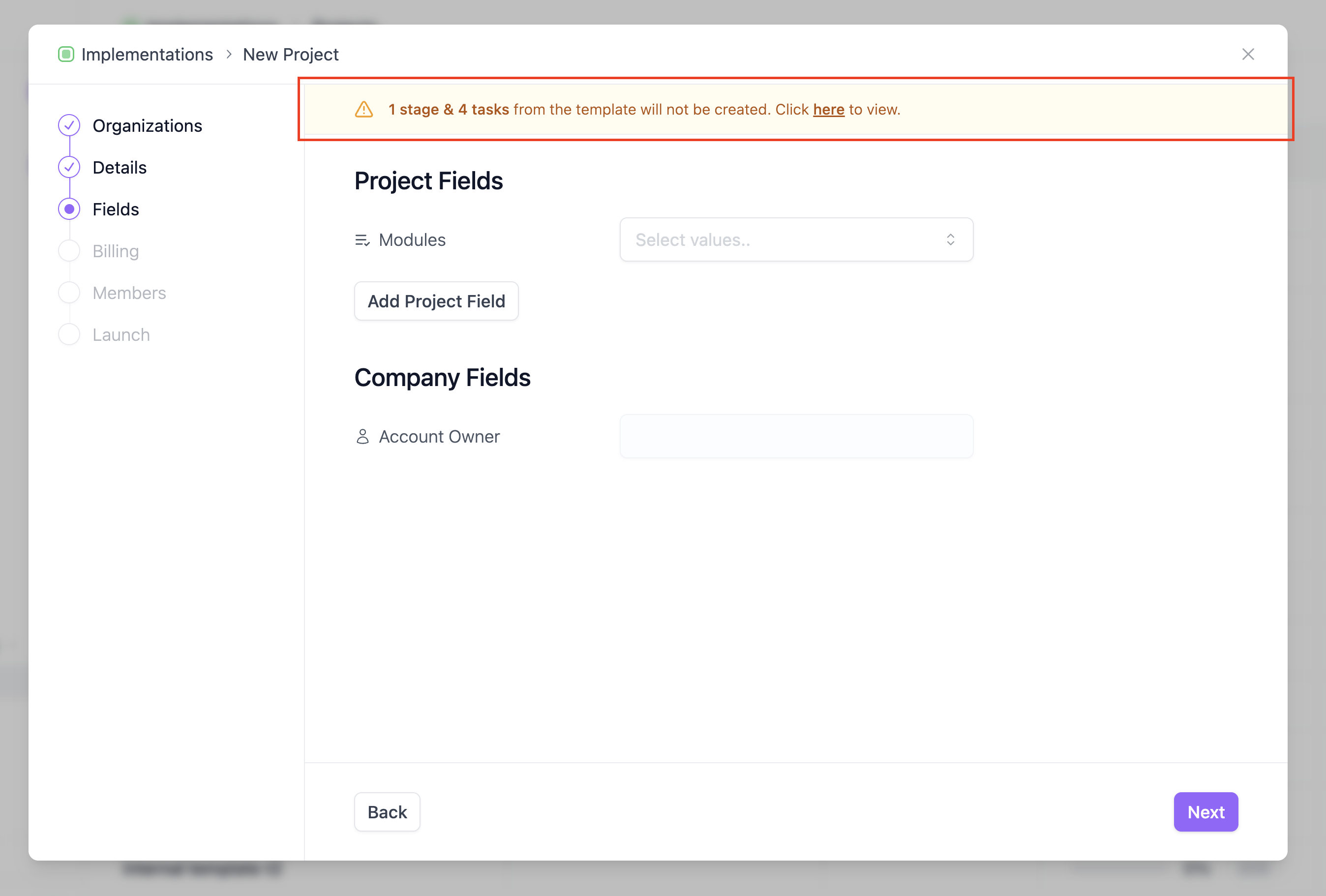
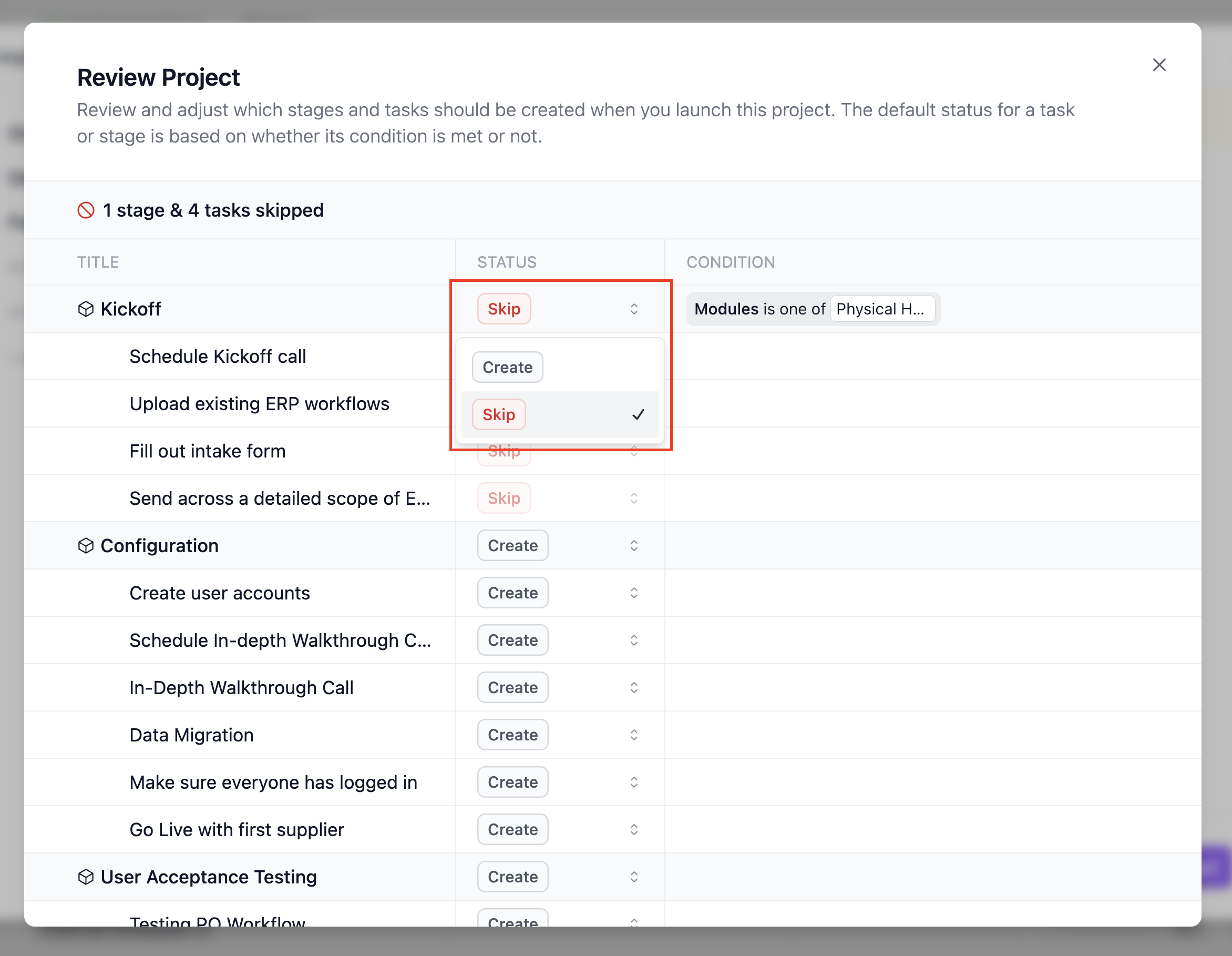
While creating a project, you can see which conditions are met or not met and how it affects stage and task creation. For example, we can see here that 1 stage and 4 tasks from the template will not be created.
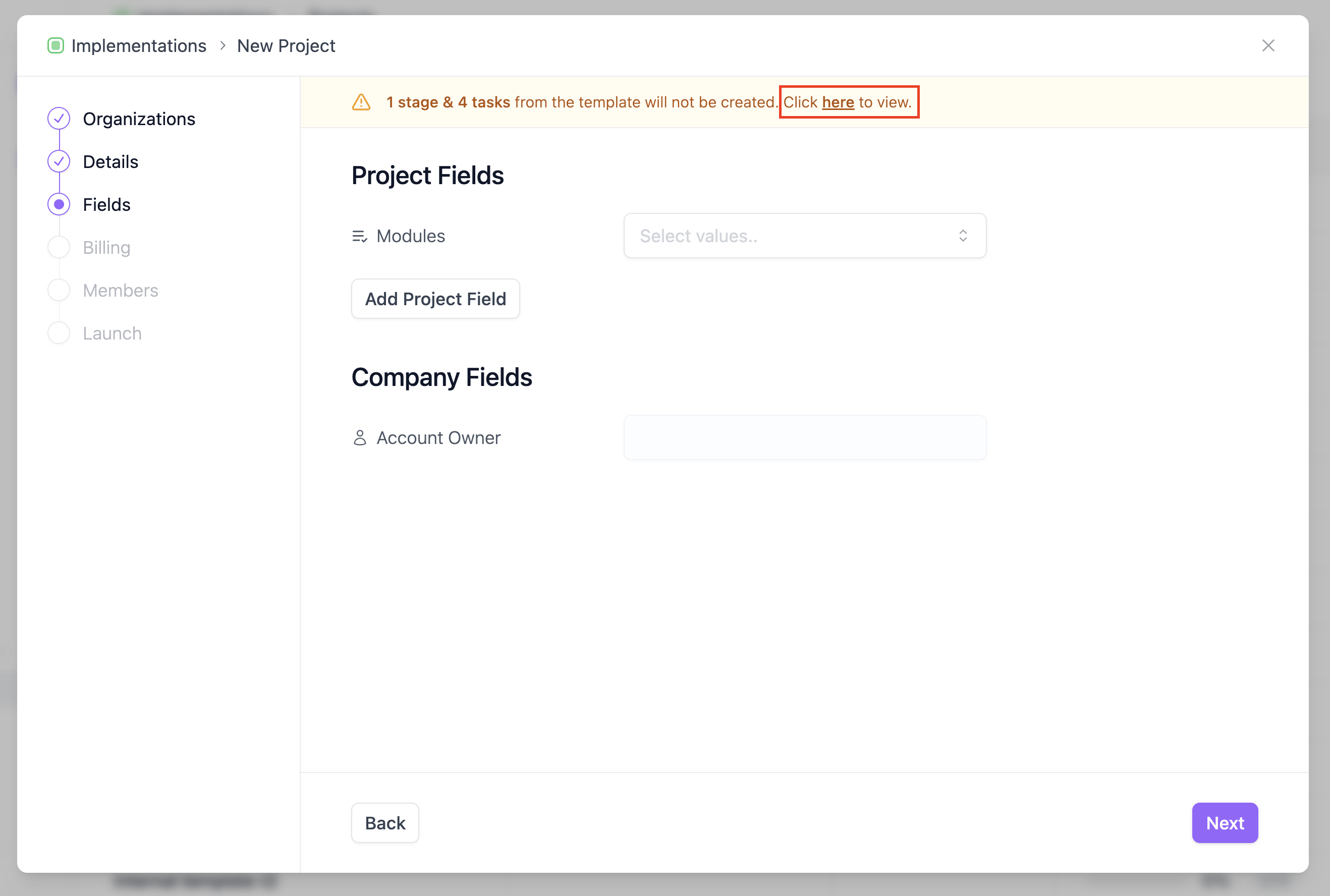
If you want to see which stages and tasks will not be crated, click into it.
In here, you can see the status of whether a stage, task or subtask will be Created or Skipped. For example, we can see the stage Kickoff and its 4 tasks will be Skipped because the condition on the stage is not being met.
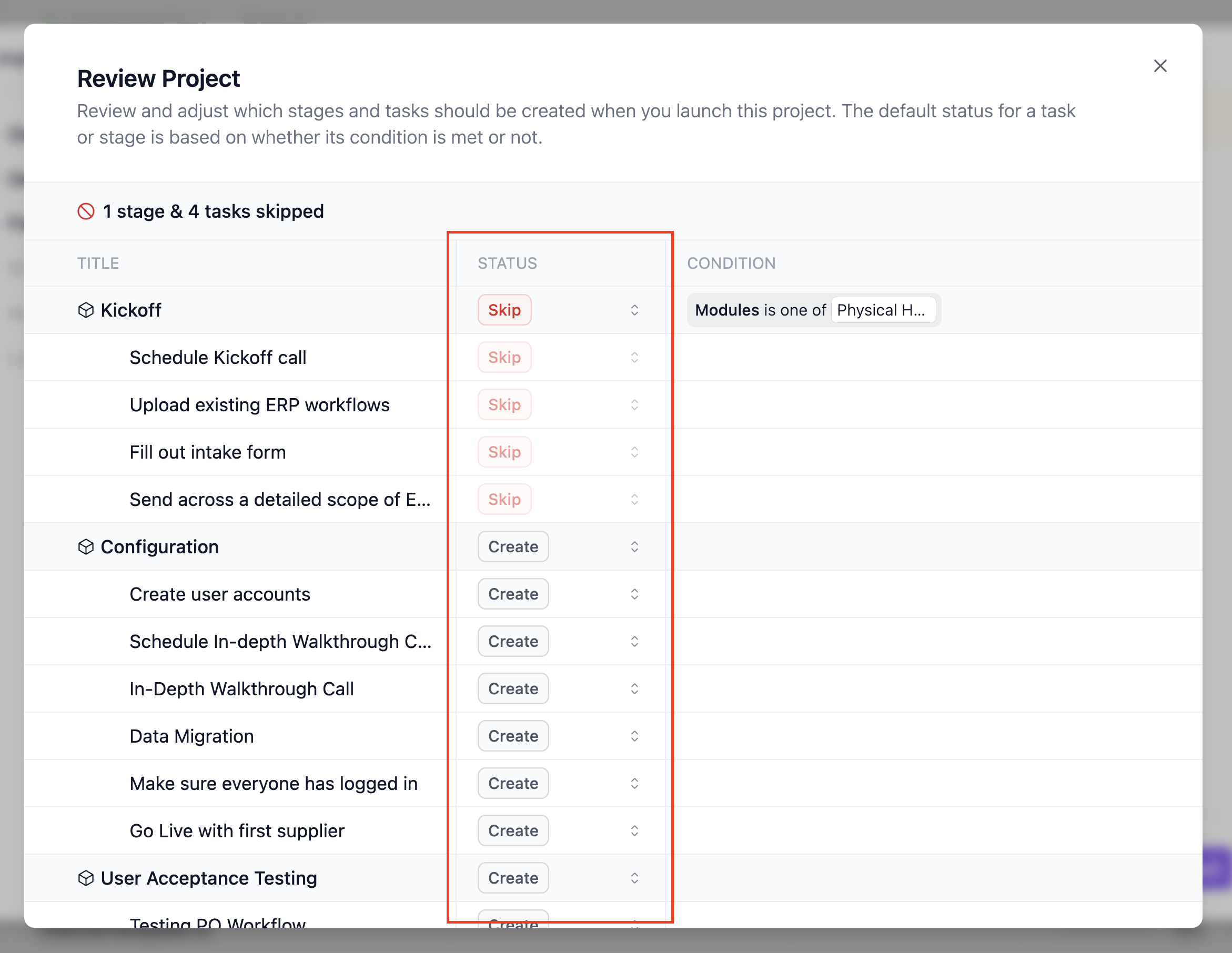
If you want to override the status of a stage, task or subtask, you can do so by clicking on the status and editing it. For now, we won't make any overrides.
As you update the values of fields, you will see the simulation results update as well. For example, because we included Physical Health as one of the values for Modules, all stages and tasks will now be created.
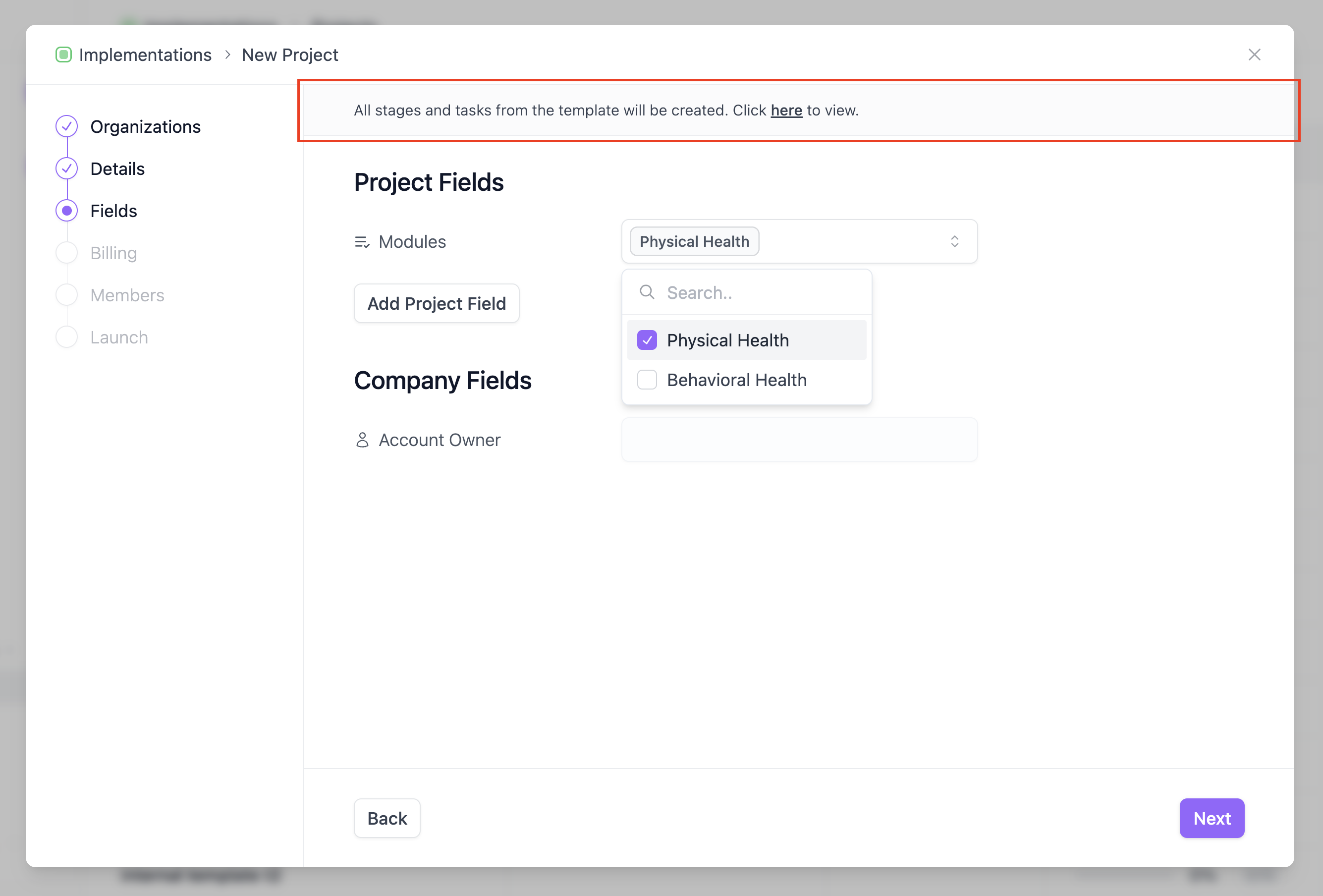
Overall, the simulation enables you to launch projects with transparency & flexibility so you never have to deal with any unexpected project configurations.
Critical Points to Remember
In a project template, let's say Task C is dependent on Task B and Task B is dependent on Task A. Let's assume that during project launch Task B's condition was not met and as a result it will not be created. In such a situation, Task C will no longer be dependent on any task when the project launches. Its start date will be set to the project start date and it will be an active task. Therefore, please be very careful how you define dependencies & conditions in project templates. You should not end up creating a situation where tasks are unexpectedly active because the task or stage they are dependent on is not created.
If you are struggling to model a scenario, please reach out to us and we will be happy to help you configure it.
Frequently Asked Questions
If I edit a project template later, will it affect existing active projects?
No. Editing a template only affects projects created in the future.If I change the value of a field after project creation, will it affect which stages, tasks and subtasks are there in the project?
No. Editing field values has no effect on stages, tasks and subtasks.If a stage's condition is not met, will any of its tasks be created?
No, if a stage is not created because its condition was not met, none of its tasks will be created.If a task's condition is not met, will any of its subtasks be created?
No, if a task is not created because its condition was not met, none of its subtasks will be created.Which fields can I create conditions on?
You can create conditions on Project & Company fields.Which field types can I create conditions on?
You can create conditions on fields of the type Select, Multi-Select and Yes/No.